Centrum pomoci
Pripojenie Apple iCloud Calendar
Použitie CalDAV s heslom pre aplikaciu
Dolezite: Vyzadovane heslo pre aplikaciu
Apple vyzaduje Heslo pre aplikaciu pre aplikacie tretich stran, ak mate povolene dvojfaktorove overenie (ktore je vyzadovane pre vsetky Apple ucty).
Nebojte sa! Tento sprievodca vas prevedie jeho vygenerovanim. Zaberie to asi 5 minut.
Predpoklady
Skor nez zacnete, uistite sa, ze mate:
- iCloud ucet (Apple ID) s kalendarmi
- Povolene dvojfaktorove overenie (povolene v predvolenom nastaveni pre vsetky ucty)
- Pristup na appleid.apple.com pre generovanie hesla pre aplikaciu
Sprievodca krok za krokom
Tento sprievodca ma 2 casti:
- Cast A: Vygenerujte heslo pre aplikaciu od Apple (5 minut)
- Cast B: Pripojte svoj iCloud kalendar v SyncMyDay (2 minuty)
Cast A: Generovanie hesla pre aplikaciu
Prejdite do nastaveni Apple ID
Otvorte prehliadac a prejdite na appleid.apple.com
Prihlaste sa pomocou e-mailu a hesla vasho Apple ID.
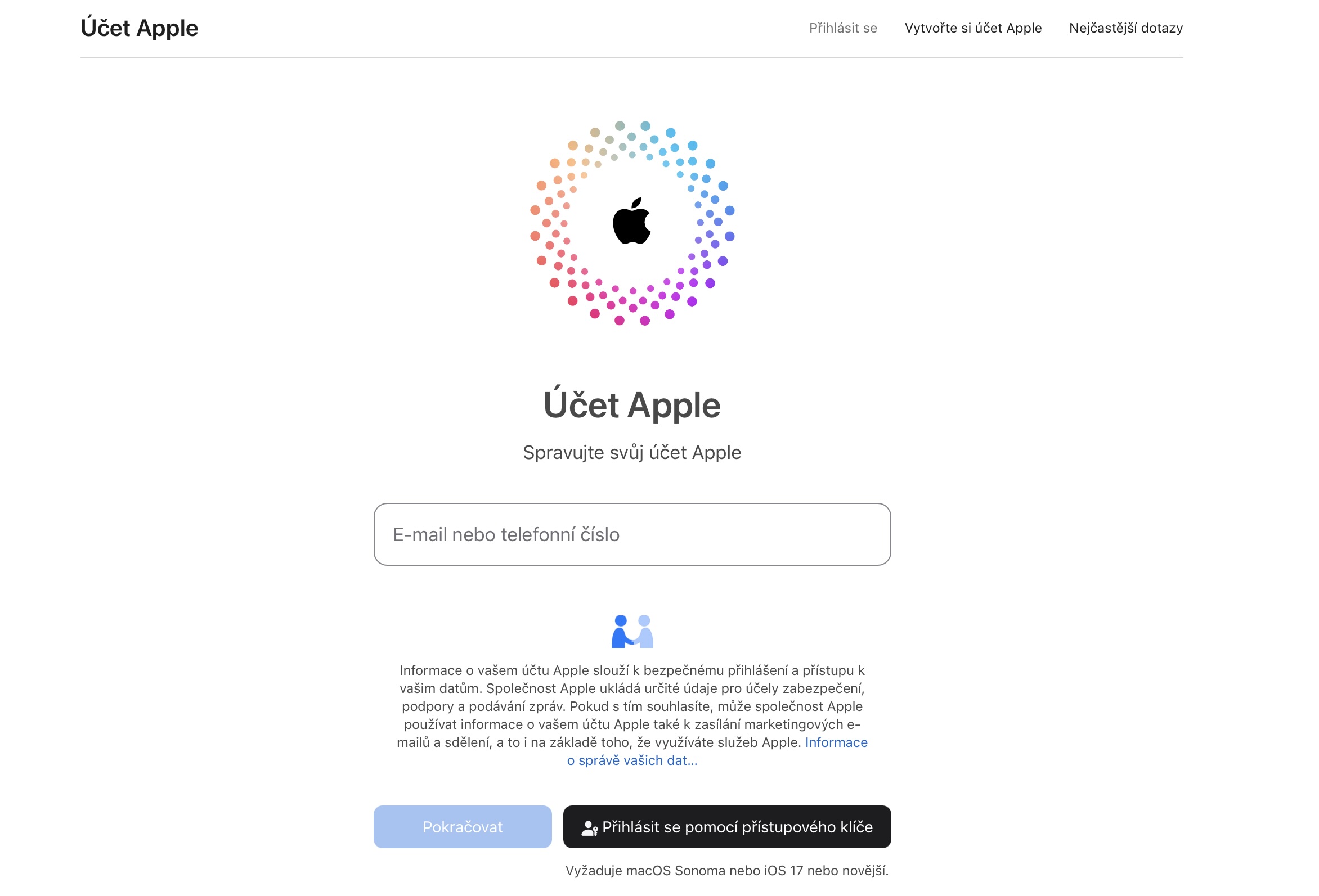
Prihlaste sa pomocou vasho Apple ID
Autentifikujte sa dvojfaktorovo
Apple posle overovaci kod na vase doveryhodne zariadenia (iPhone, iPad, Mac). Zadajte 6-miestny kod, ked budete vyzvania.
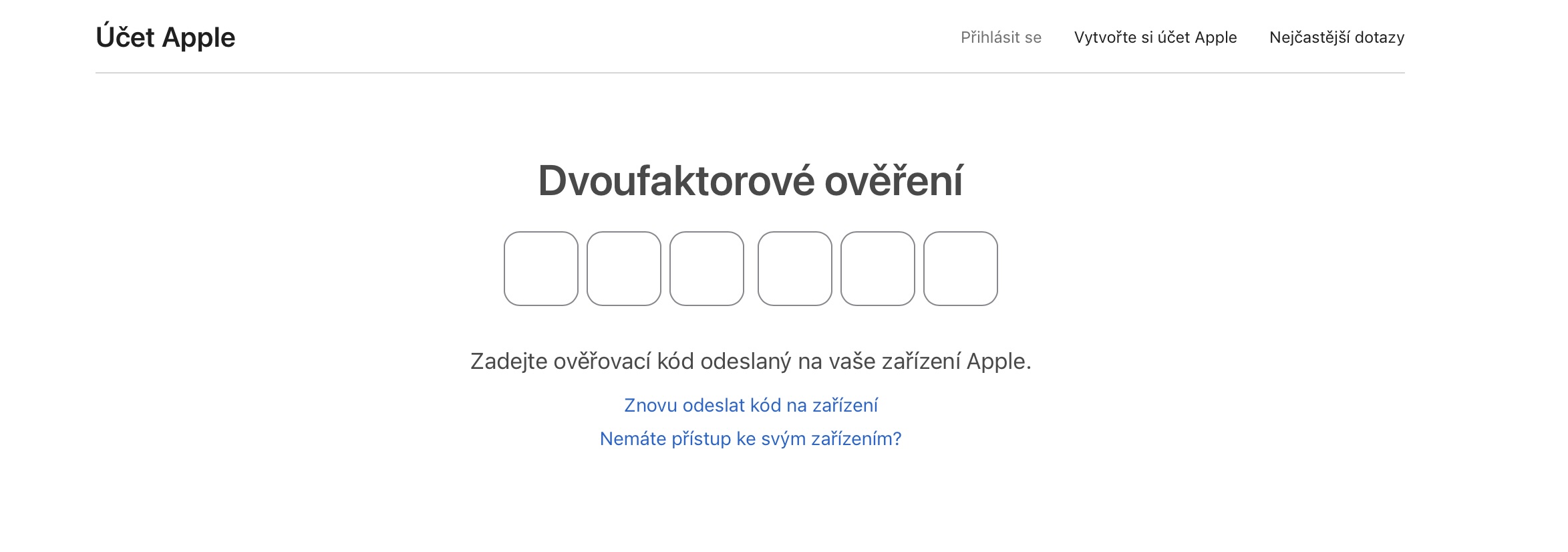
Zadajte 6-miestny overovaci kod z vasho zariadenia
Prejdite do sekcie Zabezpecenie
Po prihlaseni najdite a kliknite na sekciu "Prihlasenie a zabezpecenie".
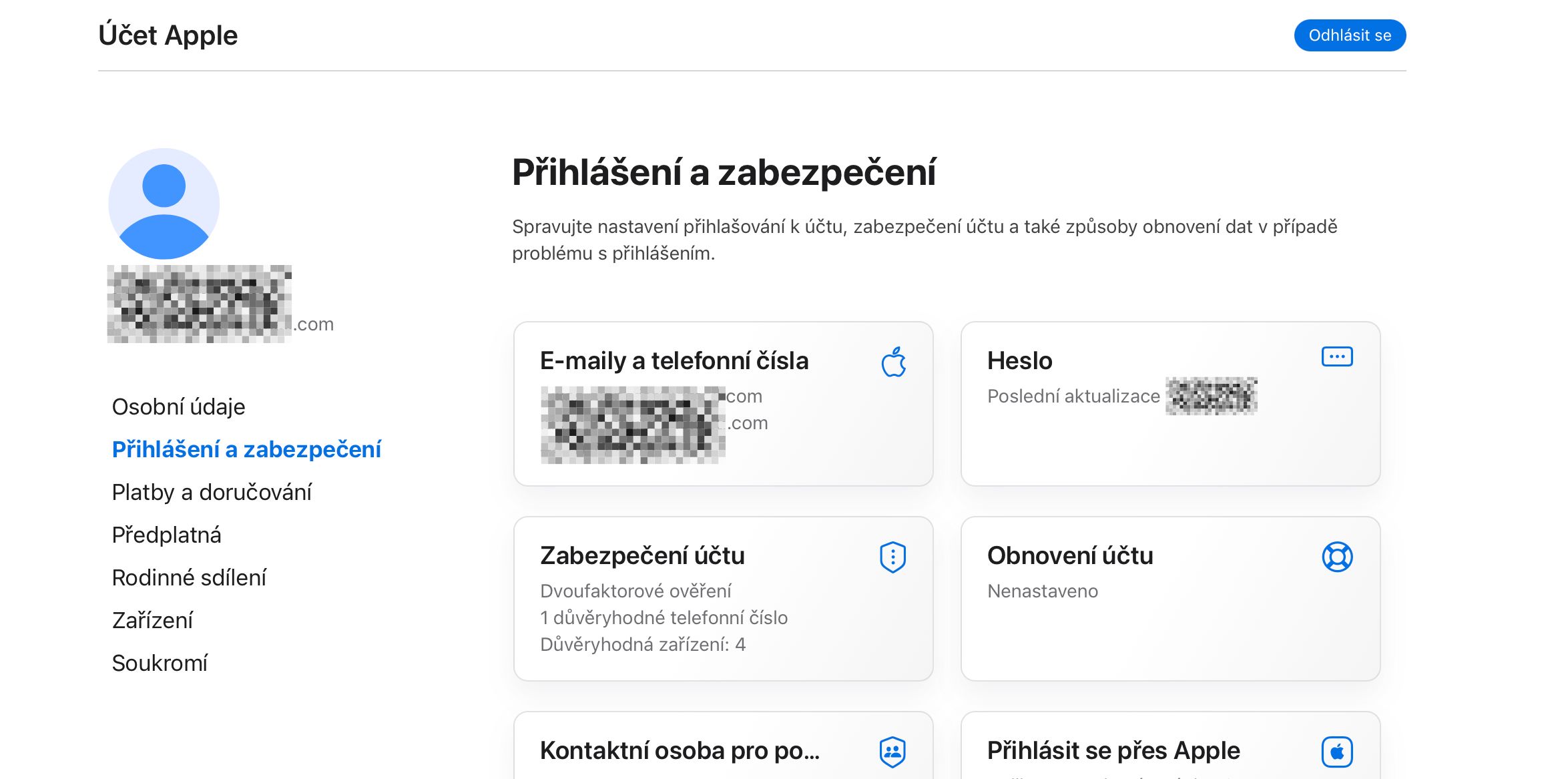
Kliknite na sekciu "Prihlasenie a zabezpecenie"
Kliknite na "Hesla pre aplikacie"
V sekcii Zabezpecenie posunte nadol, kym nenajdete "Hesla pre aplikacie" a kliknite na ne.
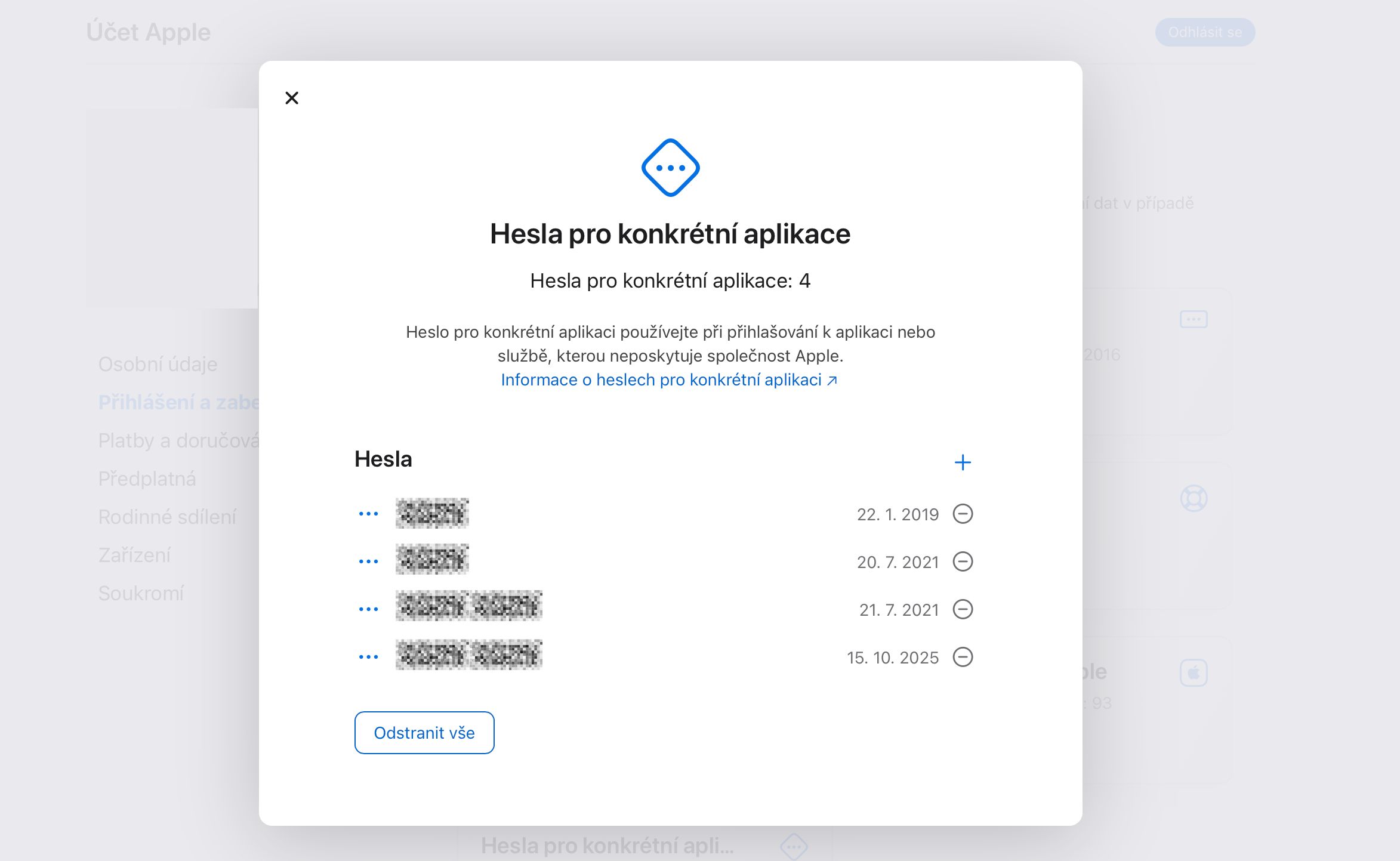
Najdite a kliknite na "Hesla pre aplikacie"
Vygenerujte nove heslo
Kliknite na tlacidlo "Vygenerovat heslo pre aplikaciu" (alebo ikonu +).
Ked budete vyzvania k zadaniu nazvu, zadajte nieco popisne ako:
SyncMyDaySyncMyDay Synchronizacia kalendara
Tip: Nazov vam pomoze zapametat si, na co je toto heslo, najma ak ho budete neskor potrebovat odvolat.
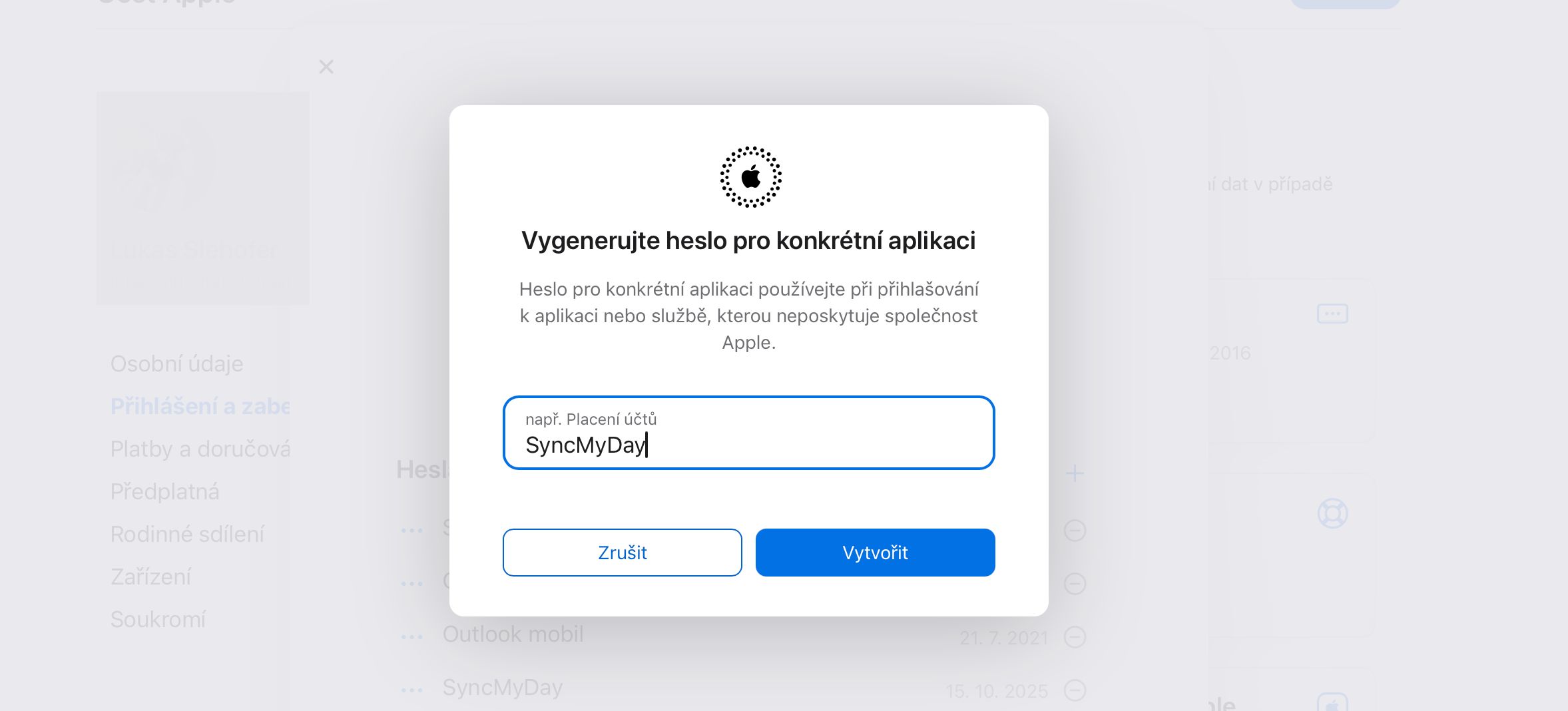
Zadajte nazov ako "SyncMyDay"
Skopirujte heslo
Apple vygeneruje heslo, ktore vypada takto: abcd-efgh-ijkl-mnop
DOLEZITE: Skopirujte toto heslo TERAZ!
Apple ukaze toto heslo iba raz. Ak ho stratite, budete musiet vygenerovat nove. Skopirujte ho do schranky alebo ho vlozte priamo do SyncMyDay v dalsom kroku.
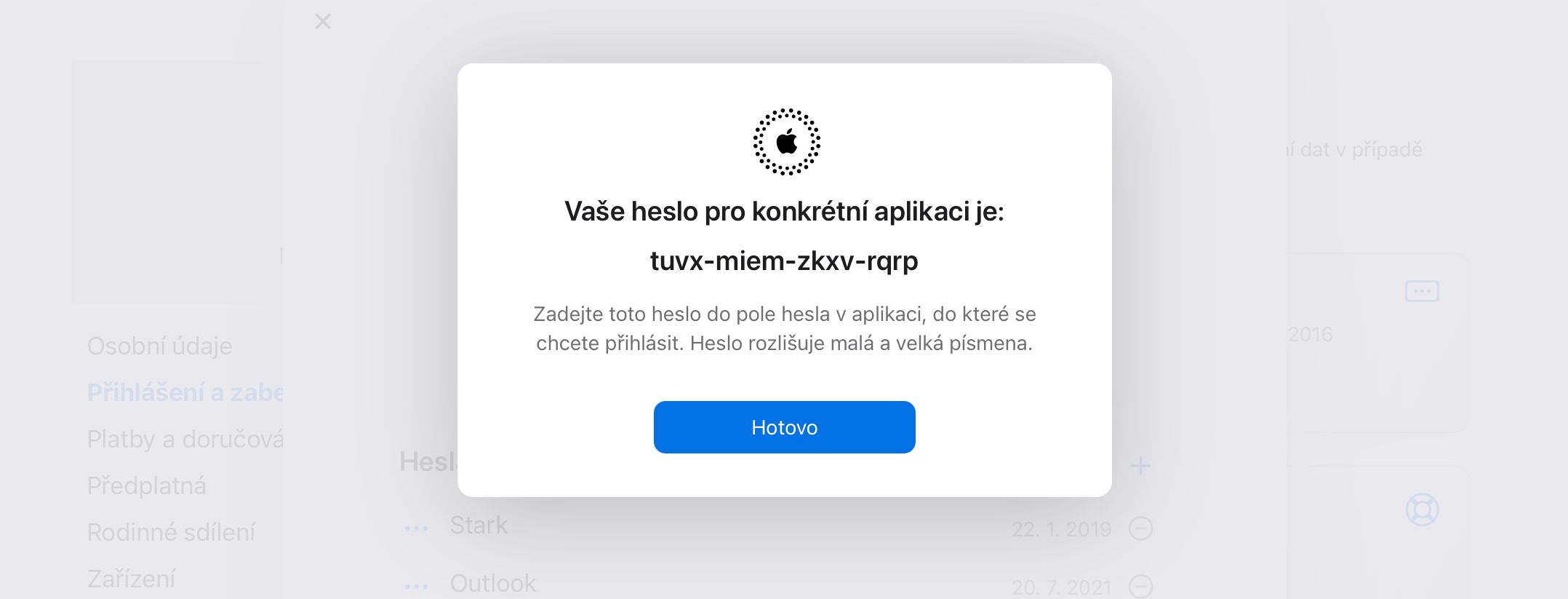
Skopirujte vygenerovane heslo - zobrazi sa iba raz!
Cast B: Pripojenie v SyncMyDay
Prejdite na Pripojenia kalendarov
Vratte sa do SyncMyDay a prejdite na Kalendare v menu, alebo chodte priamo na stranku Pripojenia kalendarov.
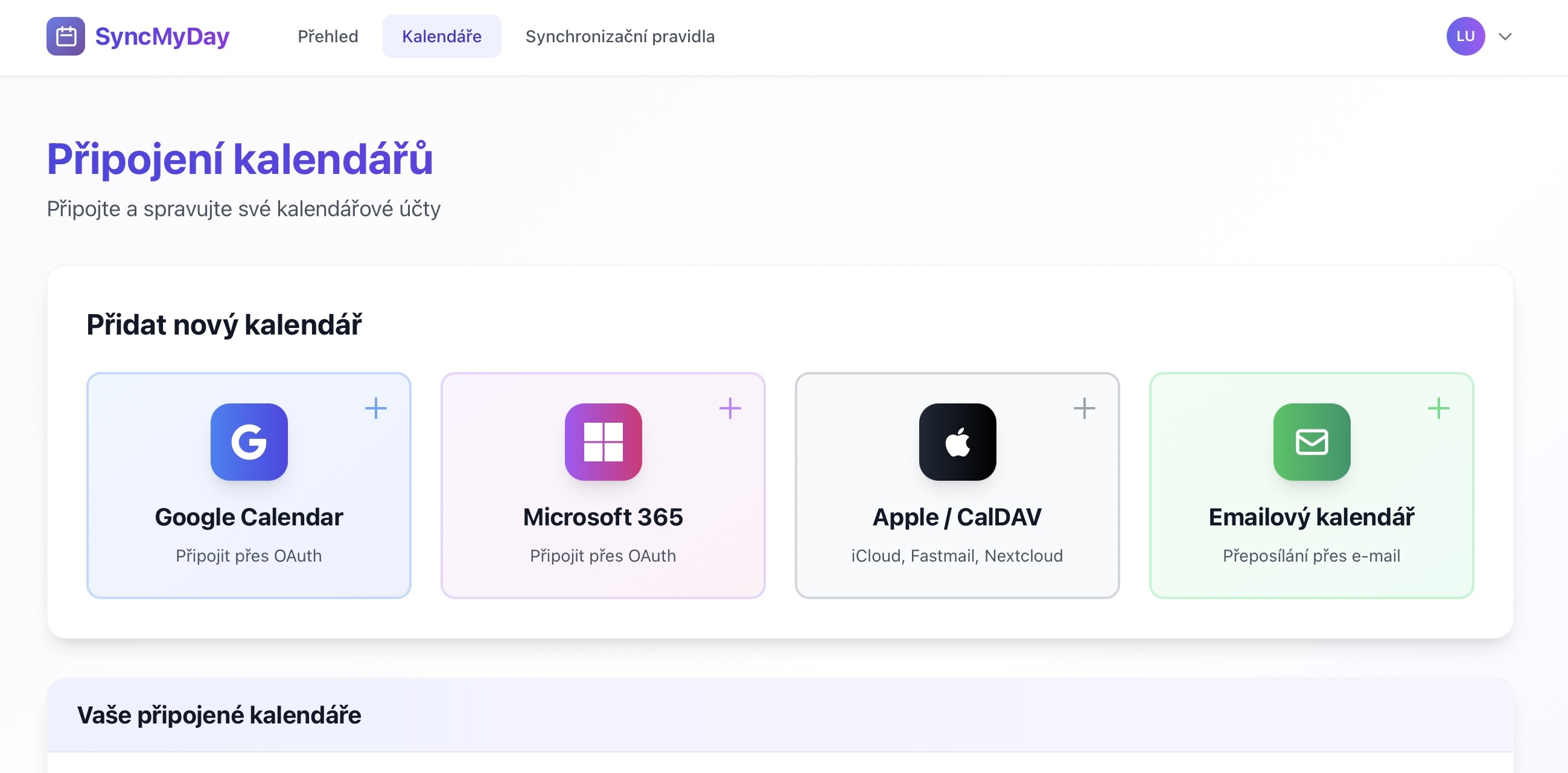
Prejdite na stranku Pripojenia kalendarov
Kliknite na "Pripojit Apple iCloud"
Najdite a kliknite na tlacidlo Apple iCloud s logom Apple.
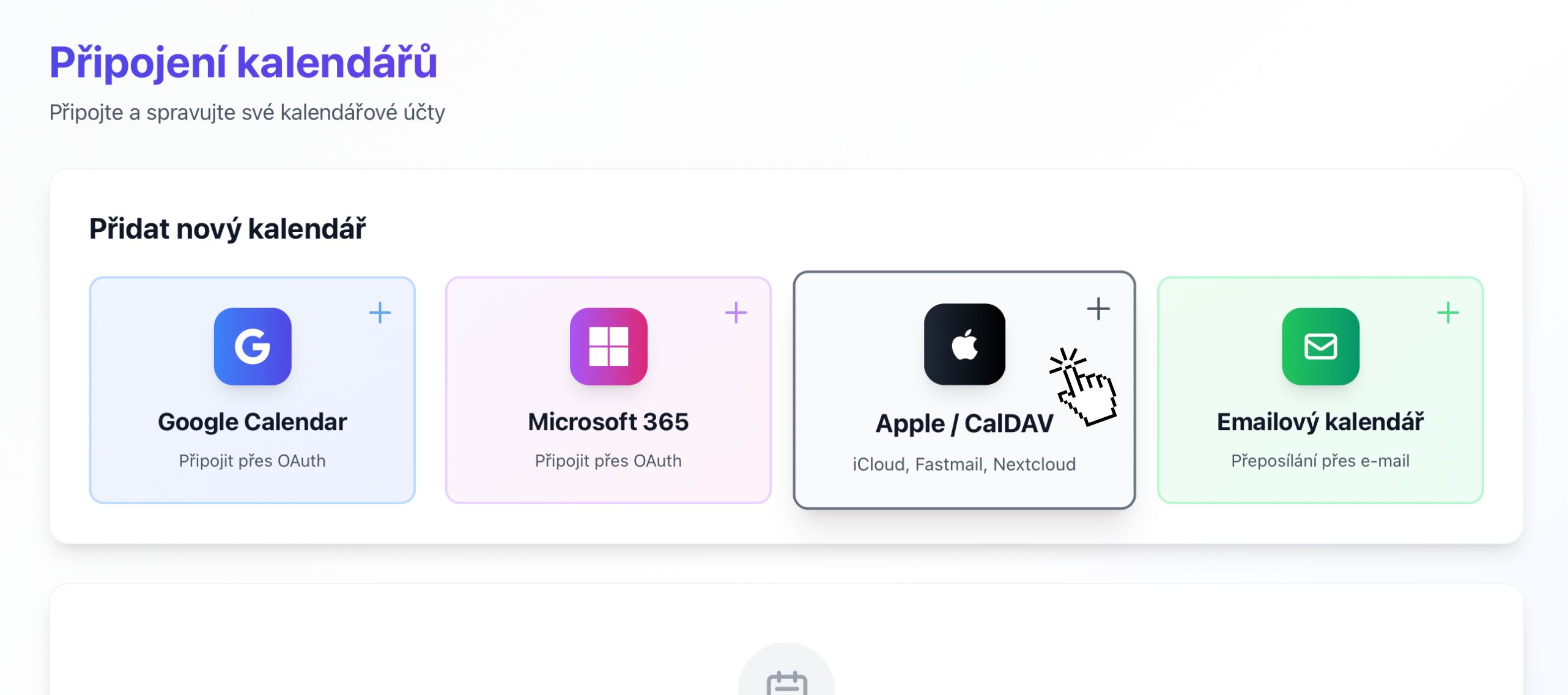
Kliknite na tlacidlo "Apple / CalDAV"
Zadajte svoje prihlasovacie udaje
Vyplnte pripojovaci formular:
- E-mail: Vas cely Apple ID e-mail (napr. vas.email@icloud.com)
- Heslo: Vlozte heslo pre aplikaciu, ktore ste skopirovali od Apple (vratane pomlciek alebo bez - oboje funguje)
Pouzite heslo pre aplikaciu
NEPOUZIVAJTE svoje bezne heslo Apple ID. Pouzite heslo pre aplikaciu, ktore ste prave vygenerovali. Vase bezne heslo nebude fungovat.
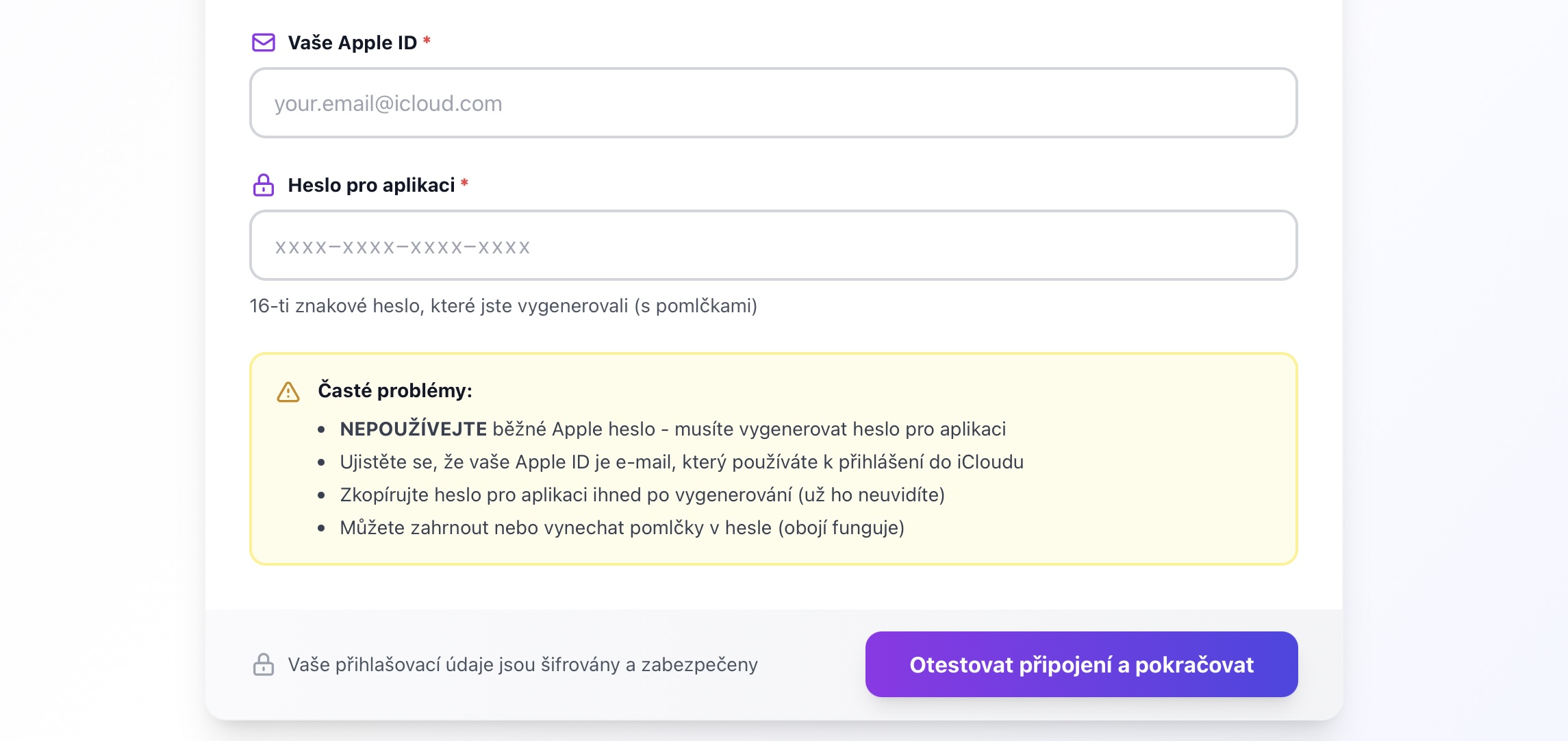
Zadajte svoj Apple ID email a heslo pre aplikaciu
Vyberte kalendare
Po pripojeni SyncMyDay nacita vase iCloud kalendare. Vyberte, ktore chcete synchronizovat.
Bezne iCloud kalendare zahrnuju:
- Domov - Vas predvoleny osobny kalendar
- Praca - Ak ste vytvorili pracovny kalendar
- Rodina - Zdielany rodinny kalendar
- Akekolvek vlastne kalendare, ktore ste vytvorili
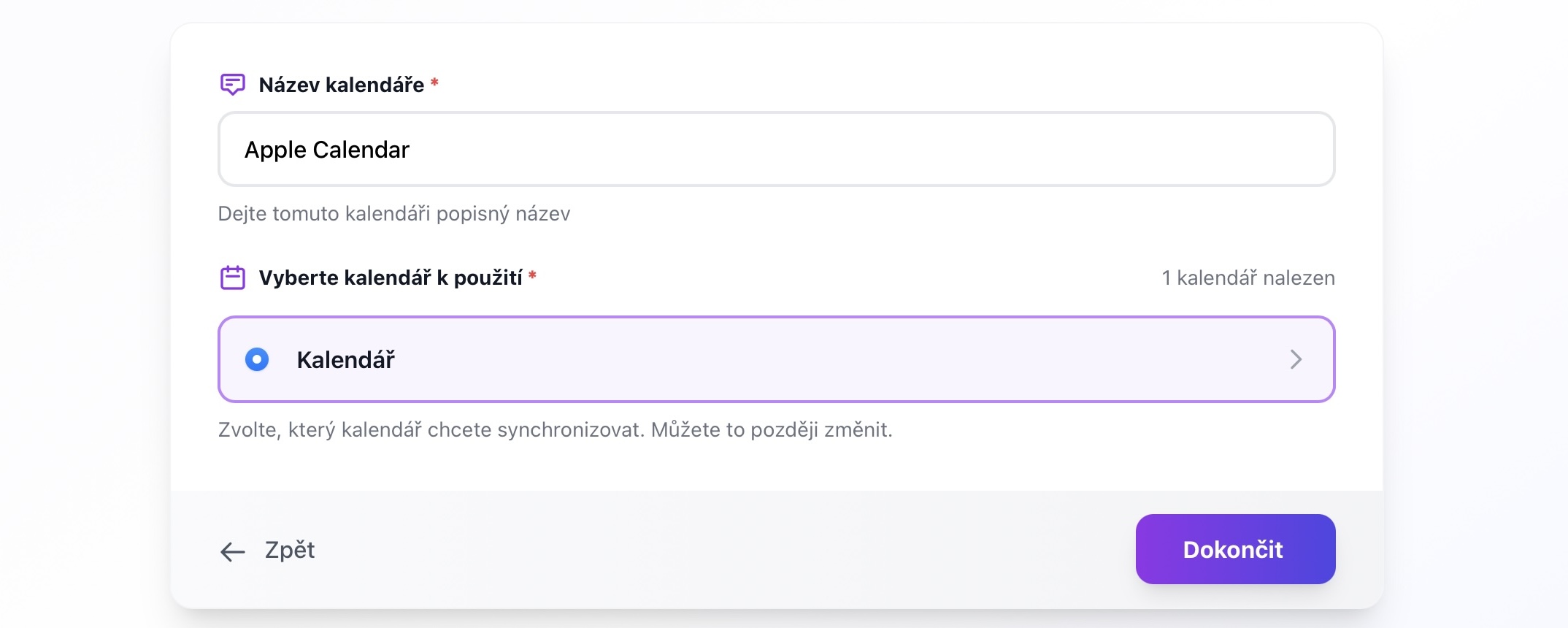
Vyberte kalendare, ktore chcete synchronizovat
Vsetko hotovo!
Vas Apple iCloud kalendar je teraz pripojeny! Uvidite ho vo vasom zozname pripojeni kalendarov.
Co dalej?
- Vas iCloud kalendar je pripraveny na pouzitie v pravidlach synchronizacie
- Udalosti sa budu synchronizovat kazdych 15 minut (obmedzenie CalDAV)
- Teraz mozete vytvarat pravidla synchronizacie pre udrzanie kalendarov synchronizovanych
Poznamka: iCloud pouziva protokol CalDAV, ktory nepodporuje webhooky v realnom case. Kontrolujeme zmeny kazdych 15 minut, aby sme boli aktualni.
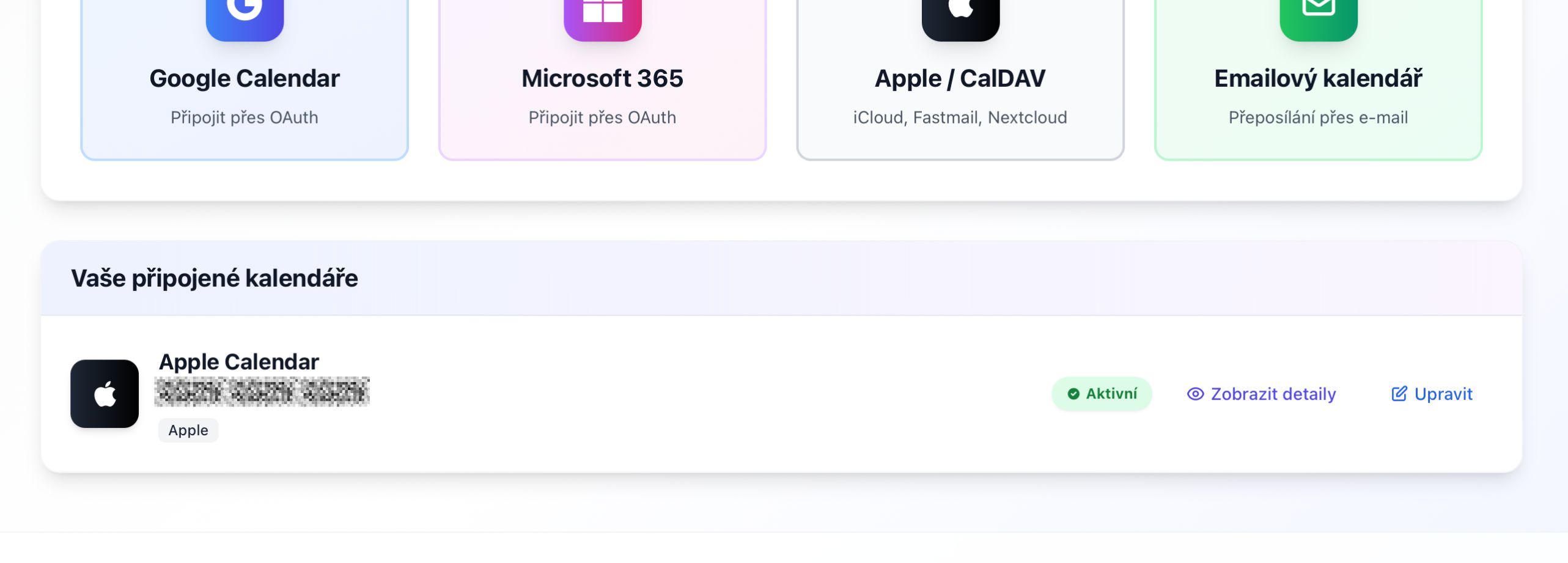
Vas iCloud kalendar je uspesne pripojeny a aktivny
Riesenie problemov
"Autentifikacia sa nepodarila" alebo "Neplatne prihlasovacie udaje"
Caste priciny:
- Pouzili ste svoje bezne heslo Apple ID namiesto hesla pre aplikaciu
- Preklep v e-mailovej adrese alebo hesle
- Heslo pre aplikaciu bolo odvolane
Riesenie:
- Skontrolujte, ze pouzivate heslo pre aplikaciu, nie bezne heslo
- Vygenerujte nove heslo pre aplikaciu a skuste to znovu
- Uistite sa, ze vas e-mail je spravny (vratane @icloud.com alebo @me.com)
Nevidim moznost "Hesla pre aplikacie"
To obvykle znamena, ze na vasom ucte nie je povolene dvojfaktorove overenie.
Riesenie:
- Prejdite do nastaveni Apple ID na appleid.apple.com
- Prejdite na Prihlasenie a zabezpecenie
- Povolte dvojfaktorove overenie
- Po povoleni sa objavi moznost Hesla pre aplikacie
Synchronizacia je pomala (15-minutove oneskorenie)
To je normalne pre iCloud kalendare. Protokol CalDAV od Apple nepodporuje webhooky v realnom case ako Google alebo Microsoft.
Preco? Kontrolujeme iCloud kazdych 15 minut na detekciu zmien. To je standardny pristup pre poskytovatelov CalDAV a vyvazuje odozvu so zatazenim servera.
Alternativa: Ak potrebujete okamzitu synchronizaciu, zvazte pouzitie Google Calendar alebo Microsoft 365, ktore oba podporuju webhooky v realnom case.
Ako odvolam heslo pre aplikaciu?
Ak potrebujete odvolat pristup:
- Prejdite na appleid.apple.com
- Prihlaste sa a prejdite na Prihlasenie a zabezpecenie
- Kliknite na Hesla pre aplikacie
- Najdite "SyncMyDay" v zozname
- Kliknite na "Odvolat" vedla neho
Mozete tiez odpojit kalendar zo stranky Pripojenia kalendarov v SyncMyDay a prestaneme pouzivat prihlasovacie udaje.
Dalsie kroky
Pripojte dalsi kalendar
Pripojte pracovny kalendar (Google, Microsoft) pre synchronizaciu s vasim osobnym iCloud kalendarom.
Vytvorte pravidlo synchronizacie
Zacnite synchronizovat udalosti medzi vasimi kalendarmi.
Protokol CalDAV
Apple iCloud pouziva protokol CalDAV (RFC 4791):
- URL servera:
https://caldav.icloud.com - Principal URL: Automaticky zistene pomocou DAV service discovery
- Autentifikacia: Basic Auth s Apple ID + heslom pre aplikaciu
Interval pollingu
Pretoze CalDAV nepodporuje push notifikacie, pollujeme kazdych 15 minut:
- Pouziva PROPFIND poziadavky na kontrolu metadat kalendara
- Stahuje iba zmenene udalosti (pomocou ETags)
- Minimalizuje sirku pasma a respektuje limity Apple
Ukladanie prihlasovacich udajov
- Hesla pre aplikacie su sifrovane pomocou AES-256
- Bezpecne ulozene v nasej databaze
- Nikdy neprenesene v cistom texte (vzdy HTTPS)
- Okamzite zmazane pri odpojeni kalendara
Kompatibilita
Tato metoda pripojenia funguje s:
- Kalendarmi iCloud.com
- Kalendarmi synchronizovanymi do iCloud z iOS zariadeni
- Kalendarmi synchronizovanymi z aplikacie Kalendar macOS
- Zdielanymi iCloud kalendarmi (ak mate opravnenie na zapis)
Obmedzenia
- Ziadna synchronizacia v realnom case: 15-minutovy interval pollingu
- Vyzadovane heslo pre aplikaciu: Nemozno pouzit bezne heslo
- Vyzadovane dvojfaktorove overenie: Vsetky iCloud ucty teraz vyzaduju 2FA