Centrum pomoci
Pripojenie Microsoft 365
Outlook, Office 365 a Exchange Online
Co je zahrnute
Tento sprievodca pokryva vsetky Microsoft kalendarove sluzby:
- Outlook.com - Osobne Microsoft ucty (@outlook.com, @hotmail.com, @live.com)
- Microsoft 365 - Pracovne alebo skolske ucty
- Office 365 - Firemne predplatne
- Exchange Online - Podnikove e-maily a kalendare
Sprievodca krok za krokom
Prejdite na Pripojenia kalendarov
Z vasho SyncMyDay dashboardu prejdite na Kalendare v hlavnom menu, alebo chodte priamo na stranku Pripojenia kalendarov.
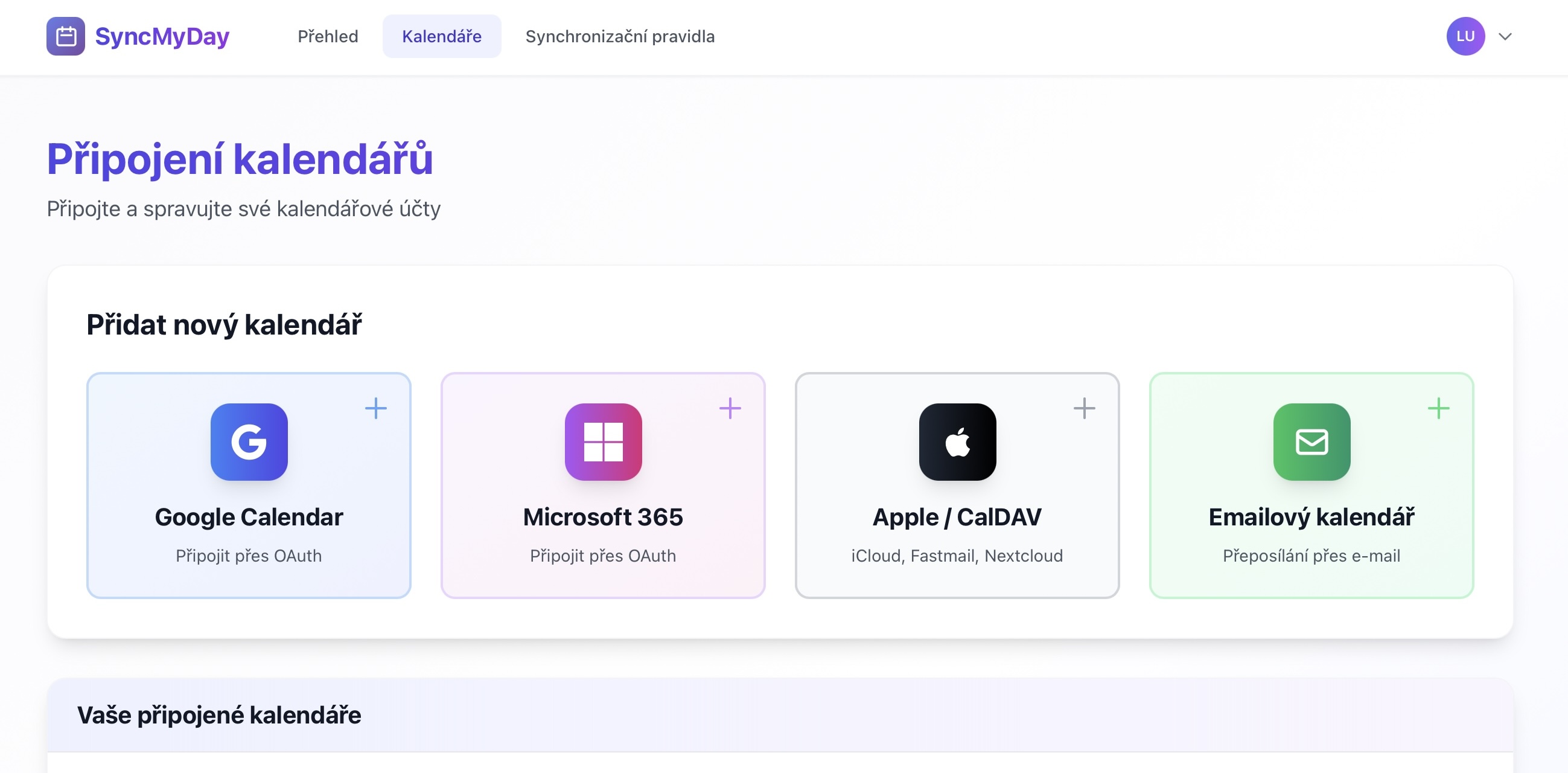
Navigacna lista zobrazujuca moznost Kalendare
Kliknite na "Pripojit Microsoft 365"
Najdite a kliknite na tlacidlo Microsoft 365 s logom Microsoft.
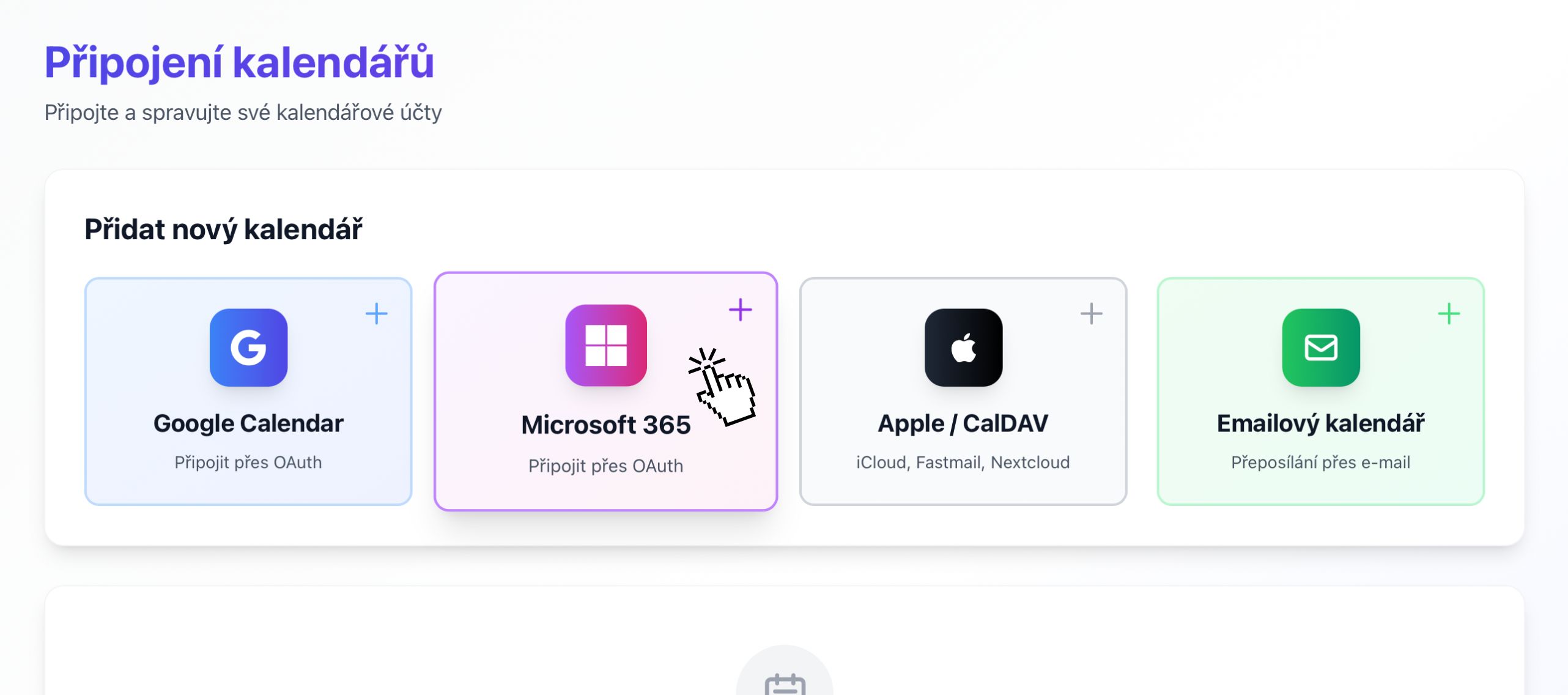
Kliknite na fialove tlacidlo "Microsoft 365" pre zahajenie pripojenia
Prihlaste sa pomocou Microsoft
Budete presmerovani na bezpecnu prihlasovaciu stranku Microsoft. Zadajte svoju Microsoft e-mailovu adresu:
- Osobna: @outlook.com, @hotmail.com, @live.com
- Pracovna/Skolska: E-mail vasej organizacie (napr. vy@firma.sk)
Pracovny/Skolsky ucet?
Vasa organizacia moze potrebovat schvalit SyncMyDay. Kontaktujte svojho IT administratora, ak uvidite spravu o ziadosti o schvalenie.
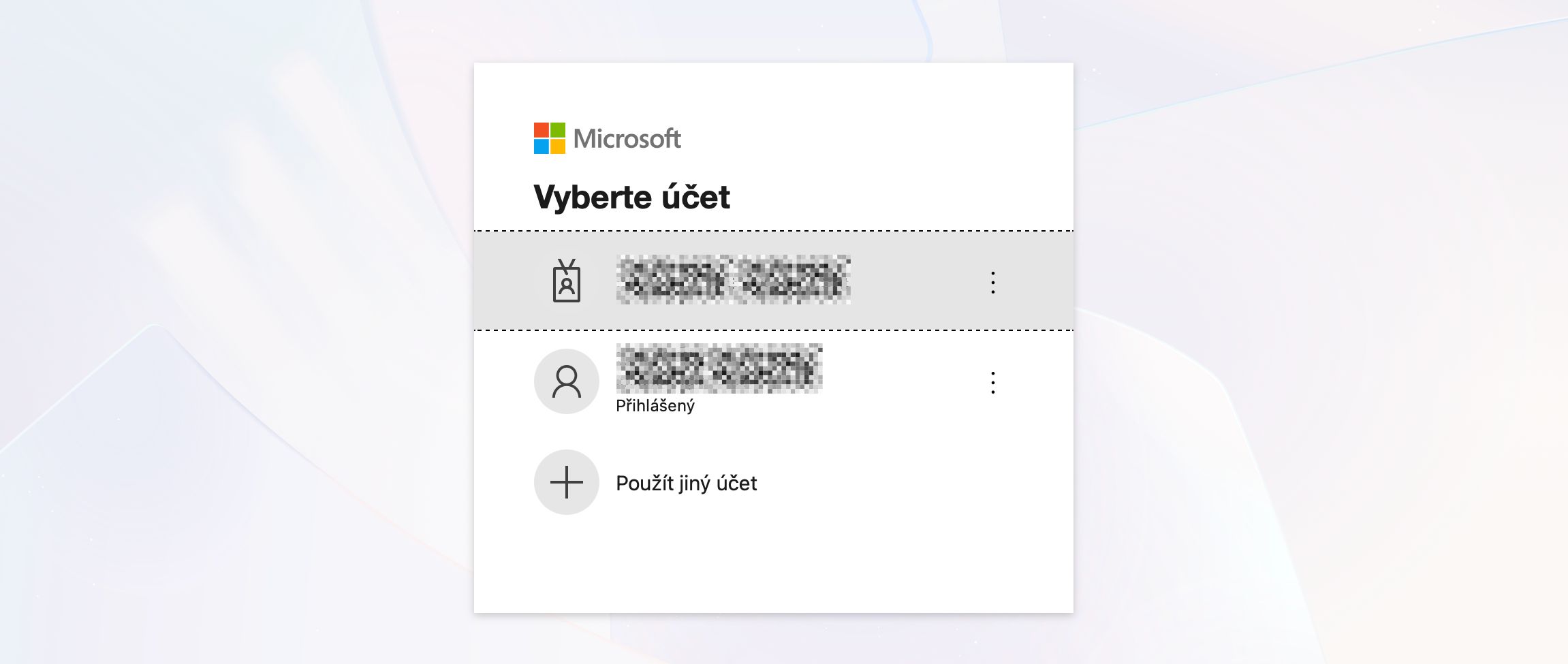
Zadajte svoju Microsoft e-mailovu adresu
Zadajte svoje heslo
Po zadani e-mailu budete vyzvania k zadaniu hesla. Zadajte heslo svojho Microsoft uctu.
Vase heslo je v bezpeci
Zadavate heslo priamo na webe Microsoft. SyncMyDay nikdy nevidi ani neuklada vase heslo.
Ak mate povolenu viacfaktorovu autentifikaciu (MFA), budete musiet schvalit prihlasenie na telefone alebo v aplikacii autentifikatora.
Udelite opravnenia
Microsoft zobrazi obrazovku s opravneniami a opyta sa, ci chcete povolit SyncMyDay pristup k vasmu kalendaru. Kliknite na Prijat pre pokracovanie.
Ake opravnenia SyncMyDay potrebuje?
- Citat vase kalendare: Na detekciu, kedy mate naplanovane udalosti
- Vytvarat a upravovat kalendarove udalosti: Na vytváranie blokujucich udalosti
- Mazat kalendarove udalosti: Na odstranenie blokujucich udalosti, ked je to potrebne
- Udrzovat pristup k datam: Na nepretrzitu synchronizaciu
Sukromie na prvom mieste
Citame iba casovanie udalosti (zaciatok/koniec). Nikdy nepristupujeme k nazvom udalosti, popisom, miestam alebo informaciam o ucastnikoch.
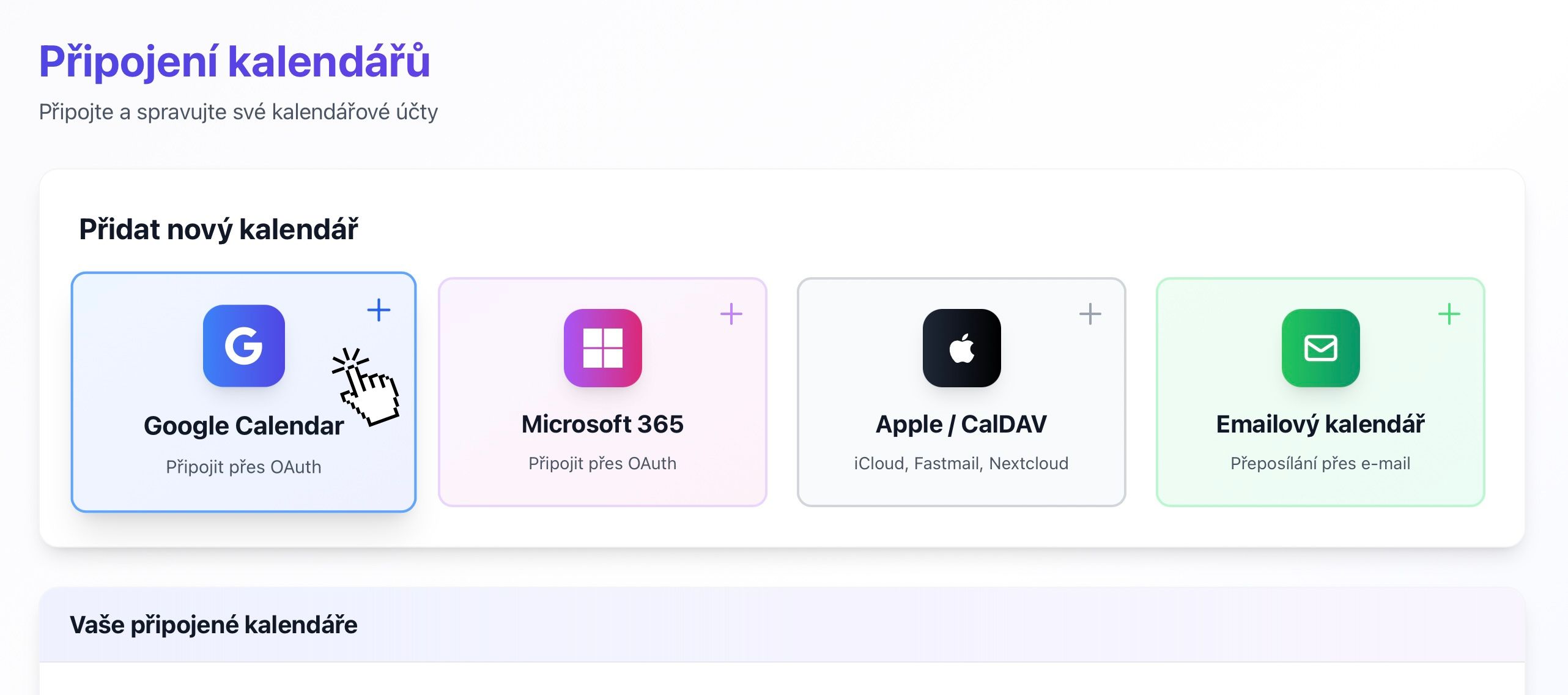
Udelite SyncMyDay opravnenia na pristup k vasmu kalendaru
Vyberte kalendare na synchronizaciu
Po udeleni opravneni sa vratite do SyncMyDay, kde mozete vybrat, ktore Microsoft kalendare chcete pouzit pre synchronizaciu.
Vacsina uctov bude mat aspon:
- Kalendar - Vas hlavny kalendar
- Narodeniny - Narodeniny kontaktov (mozete preskocit)
Mozete tiez vidiet:
- Zdielane timove kalendare
- Kalendare zdrojov (zasadacie miestnosti, vybavenie)
- Kalendare zdielane s vami kolegami
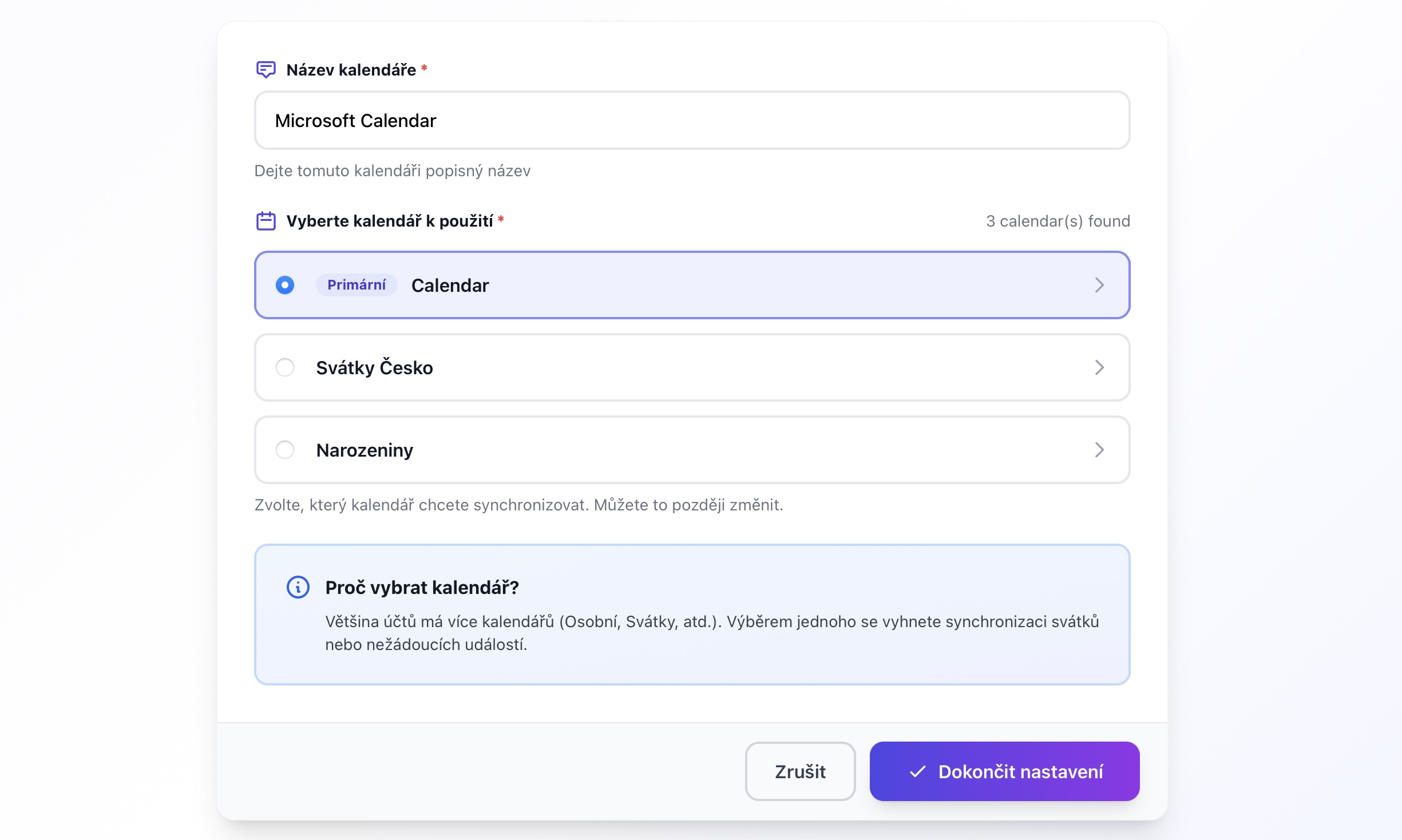
Vyberte kalendare, ktore chcete synchronizovat
Pripojenie dokoncene!
Vas Microsoft 365 kalendar je teraz pripojeny a pripraveny na pouzitie. Uvidite ho vo vasom zozname Pripojeni kalendarov so stavom "Aktivny".
Vsetko je nastavene!
- Synchronizacia v realnom case je povolena prostrednictvom webhookov
- Zmeny vo vasom kalendari su detekovane pocas niekolkych sekund
- Pripravene vytvorit pravidla synchronizacie a zacat synchronizovat!
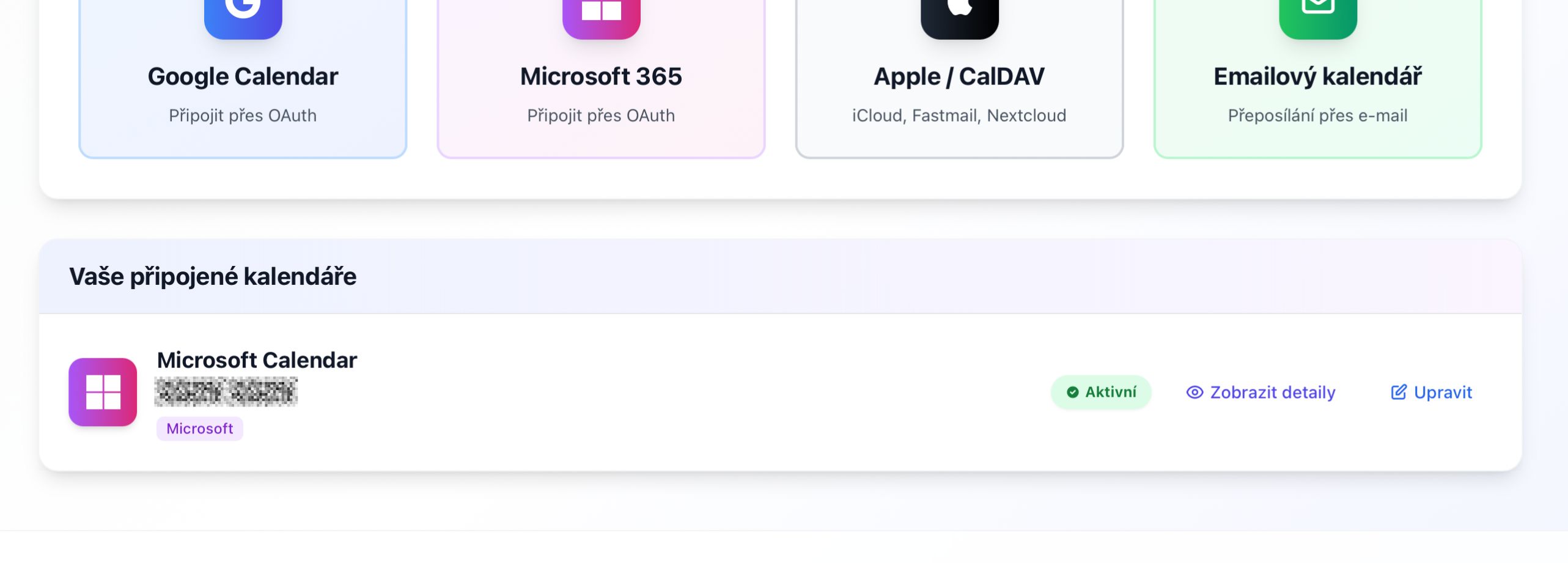
Vas Microsoft 365 kalendar je uspesne pripojeny a aktivny
Caste problemy
"Vasa organizacia potrebuje schvalit tuto aplikaciu"
Preco sa to stava: Vase IT oddelenie obmedzilo, ktore aplikacie mozu pristupovat k firemnym datam.
Riesenie:
- Kontaktujte svojho IT administratora alebo helpdesk
- Poziadajte ich o schvalenie "SyncMyDay" v centre spravy Microsoft 365
- Alebo poziadajte o vynimku pre vas ucet
To je bezne vo vacsich organizaciach a je to osvedceny bezpecnostny postup.
Pripojenie zobrazuje stav "Chyba"
Caste priciny:
- Vase heslo bolo zmenene
- Nastavenia viacfaktorovej autentifikacie sa zmenili
- Organizacia odvolala pristup
Riesenie: Kliknite na tlacidlo "Obnovit" pre opätovnu autentifikaciu, alebo odpojte a znovu pripojte kalendar.
Nevidim zdielany kalendar
Zdielane kalendare by sa mali objavit, ak su pridane do vasho Outlooku. Ak chybaju:
- Uistite sa, ze kalendar je viditelny v Outlook webe alebo aplikacii
- Odpojte a znovu pripojte svoj Microsoft ucet
- Uistite sa, ze mate aspon opravnenie "Moze zobrazit vsetky detaily"
Dalsie kroky
Pripojte dalsi kalendar
Pripojte osobny kalendar (Google, Apple) pre synchronizaciu s vasim pracovnym kalendarom.
Vytvorte pravidlo synchronizacie
Nastavte svoju prvu synchronizaciu medzi kalendarmi.
Microsoft Graph API
SyncMyDay pouziva Microsoft Graph API s tymito opravneniami:
Calendars.ReadWrite- Citanie a zapis kalendarovych udalostioffline_access- Udrzovanie pristupu, ked je pouzivatel offline
OAuth 2.0 autentifikacia
Pouzivame standardny OAuth 2.0 authorization code flow:
- Podporuje osobne Microsoft ucty aj Azure AD ucty
- Tokeny su automaticky obnovovane kazdych 60 minut
- Obnovovacie tokeny su platne 90 dni (automaticky obnovovane)
Synchronizacia v realnom case
Microsoft Graph change notifications (webhooky) umoznuju okamzitu synchronizaciu:
- Predplatne su vytvorene pre kazdy pripojeny kalendar
- Oznamenia su prijimane pocas 2-3 minut po zmenach
- Predplatne su automaticky obnovovane kazde 3 dni
- Zalozny polling prebieha kazdych 15 minut, ak webhooky zlyhaju
Podnikovy suhlas administratora
IT administratori mozu vopred schvalit SyncMyDay pre vsetkych pouzivatelov:
- Prejdite na Portal Azure AD -> Podnikove aplikacie
- Vyhladajte "SyncMyDay" alebo pridajte cez App ID
- Udelite suhlas administratora pre organizaciu
- Pouzivatelia sa potom mozu pripojit bez vyziev ku schvaleniu
API obmedzenia
Microsoft Graph ma nasledujuce limity:
- Na aplikaciu: 10,000 poziadavkov za 10 minut
- Na pouzivatela: 2,000 poziadavkov za sekundu
Architektura SyncMyDay zalozena na webhookoch minimalizuje API volania a zostava dobre v ramci limitov.
Rezidencia dat
Vase kalendarove data zostavaju v datovych centrach Microsoft. SyncMyDay uklada iba:
- ID kalendarov a nazvy
- Casy zaciatku/konca udalosti (ziadne nazvy alebo popisy)
- Sifrovane OAuth tokeny