Centrum pomoci
Vytváranie pravidiel synchronizacie
Nastavte automaticku synchronizaciu kalendarov
Co je pravidlo synchronizacie?
Pravidlo synchronizacie definuje, ako maju byt udalosti z jedneho kalendara (zdroja) synchronizovane do ineho kalendara (ciela) ako blokovacie udalosti.
Priklad: "Synchronizovat vsetky zaneprazdnene udalosti z mojho osobneho kalendara Google do pracovneho kalendara Outlook ako blokatory 'Zaneprazdneny'."
Skor nez zacnete
Uistite sa, ze mate:
- Aspon 2 pripojene kalendare - Potrebujete zdrojovy kalendar a cielovy kalendar
- Oba kalendare zobrazuju stav "Aktivny" - Skontrolujte stranku Pripojenia kalendarov
- Udalosti v zdrojovom kalendari - Na otestovanie synchronizacie
Sprievodca krok za krokom
Prejdite na Pravidla synchronizacie
Prejdite na Pravidla synchronizacie v hlavnom menu, alebo chodte priamo na stranku Pravidla synchronizacie z vasho dashboardu.
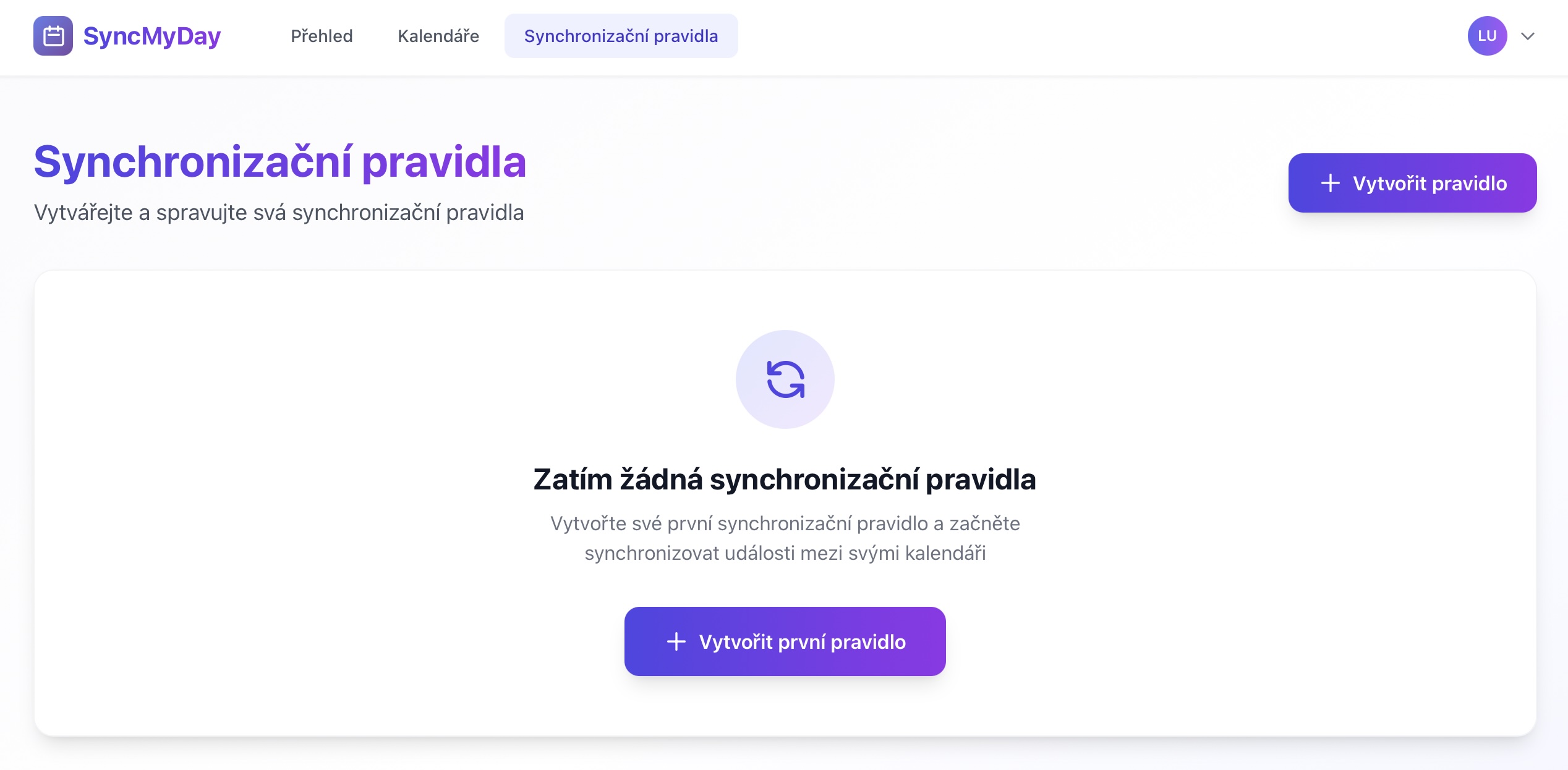
Prejdite na stranku Synchronizacne pravidla
Kliknite na "Vytvorit nove pravidlo synchronizacie"
Na stranke Pravidla synchronizacie kliknite na tlacidlo "Vytvorit nove pravidlo synchronizacie" alebo "+ Nove pravidlo".
Vyberte zdrojovy kalendar
Vyberte, udalosti z akeho kalendara chcete synchronizovat Z.
Co je zdrojovy kalendar?
Zdrojovy kalendar je miesto, kde su vase skutocne udalosti. Ked v tomto kalendari vytvorite, aktualizujete alebo zmazete udalosti, SyncMyDay automaticky vytvori alebo aktualizuje blokovacie udalosti vo vasich cielovych kalendaroch.
Bezne priklady:
- Osobny kalendar (zdroj) -> Pracovny kalendar (ciel): Blokovat pracovny cas, ked mate osobne schodzky
- Pracovny kalendar (zdroj) -> Osobny kalendar (ciel): Blokovat osobny cas, ked mate pracovne schodzky
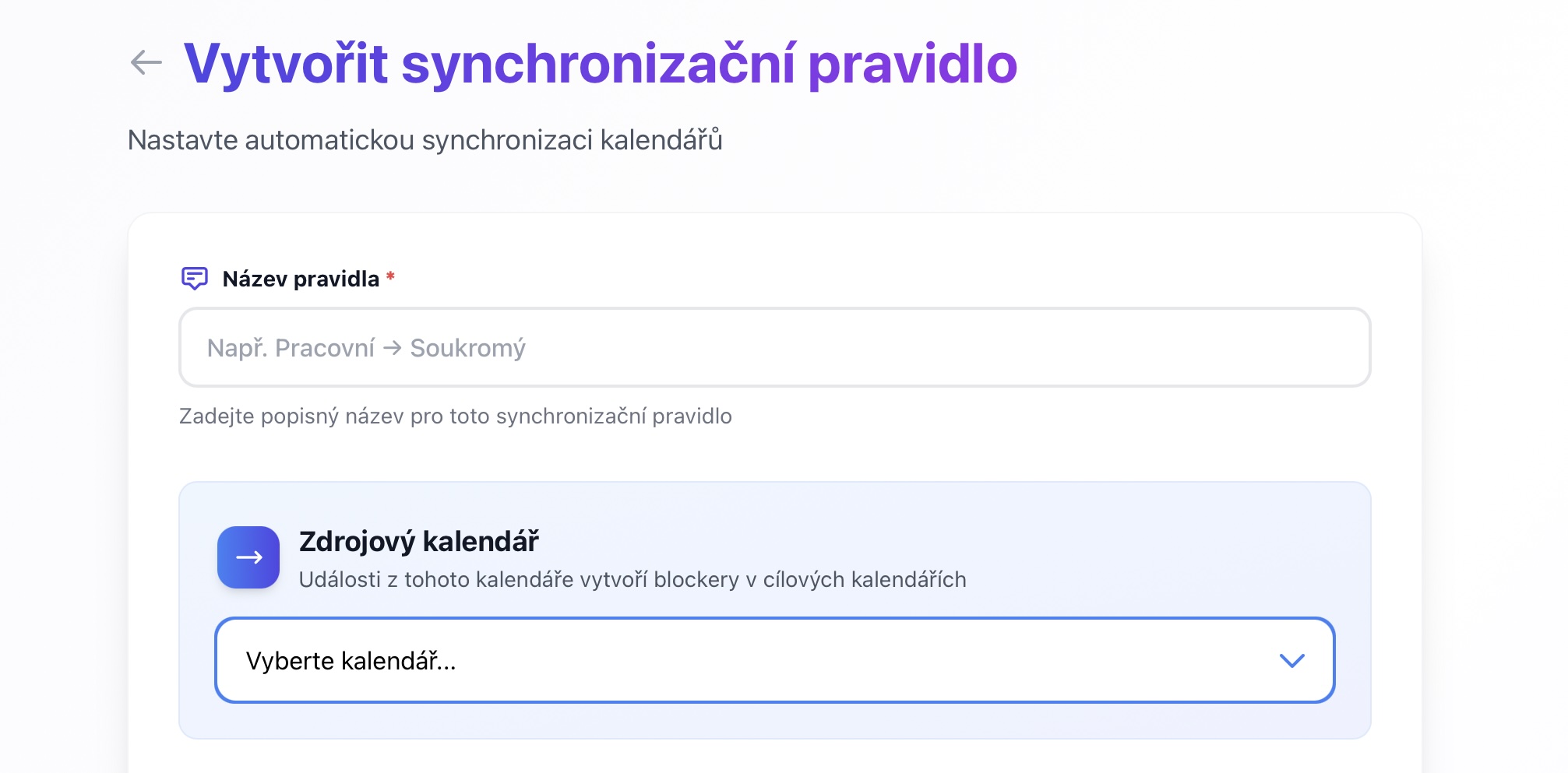
Vyberte zdrojovy kalendar (odkial kopirovat udalosti)
Vyberte cielovy kalendar(e)
Vyberte jeden alebo viac kalendarov, kde maju byt vytvorene blokovacie udalosti.
Tip: Viac cielov
Mozete vybrat viac cielovych kalendarov! Napriklad synchronizujte osobne udalosti sucasne do pracovneho kalendara Google A pracovneho kalendara Outlook.
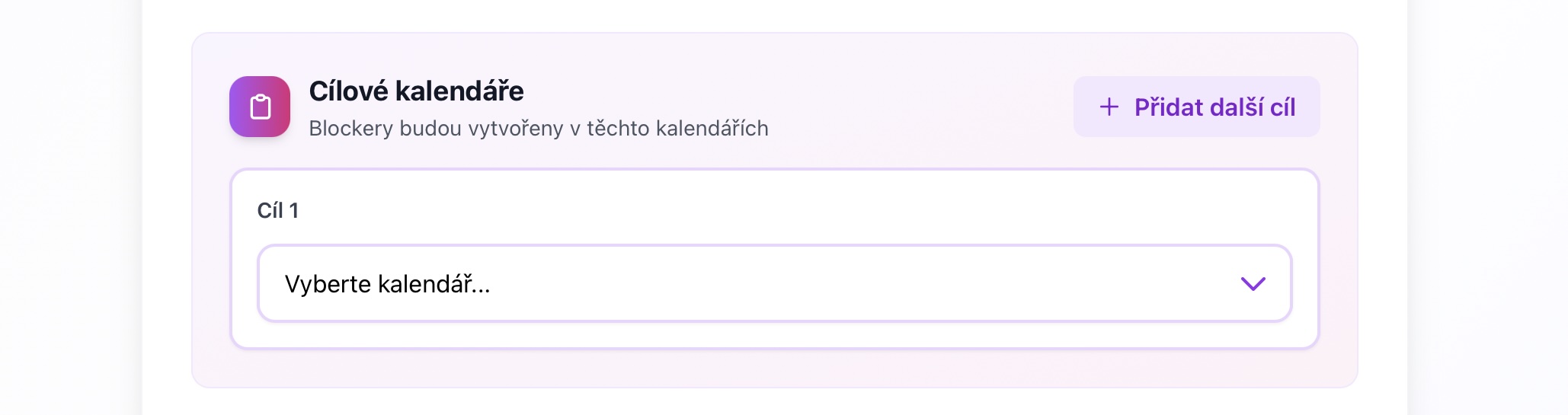
Vyberte cielove kalendare (kam kopirovat udalosti)
Nakonfigurujte nazov blokovacej udalosti
Zadajte text, ktory sa zobrazi ako nazov pre vsetky blokovacie udalosti vytvorene tymto pravidlom.
Oblubene nazvy:
Zaneprazdneny- Jednoduche a univerzalneOsobny cas- Indikuje sukromny casNie je k dispozicii- Jasna nedostupnostSchodzka- Obecny zastupny symbolSukromne- Pre vizualne odlisenie
Pamatajte:
Nazov blokatora je to, co ostatni uvidia vo vasom kalendari. Vyberte nieco vhodne pre vas kontext (praca, osobne atd.).
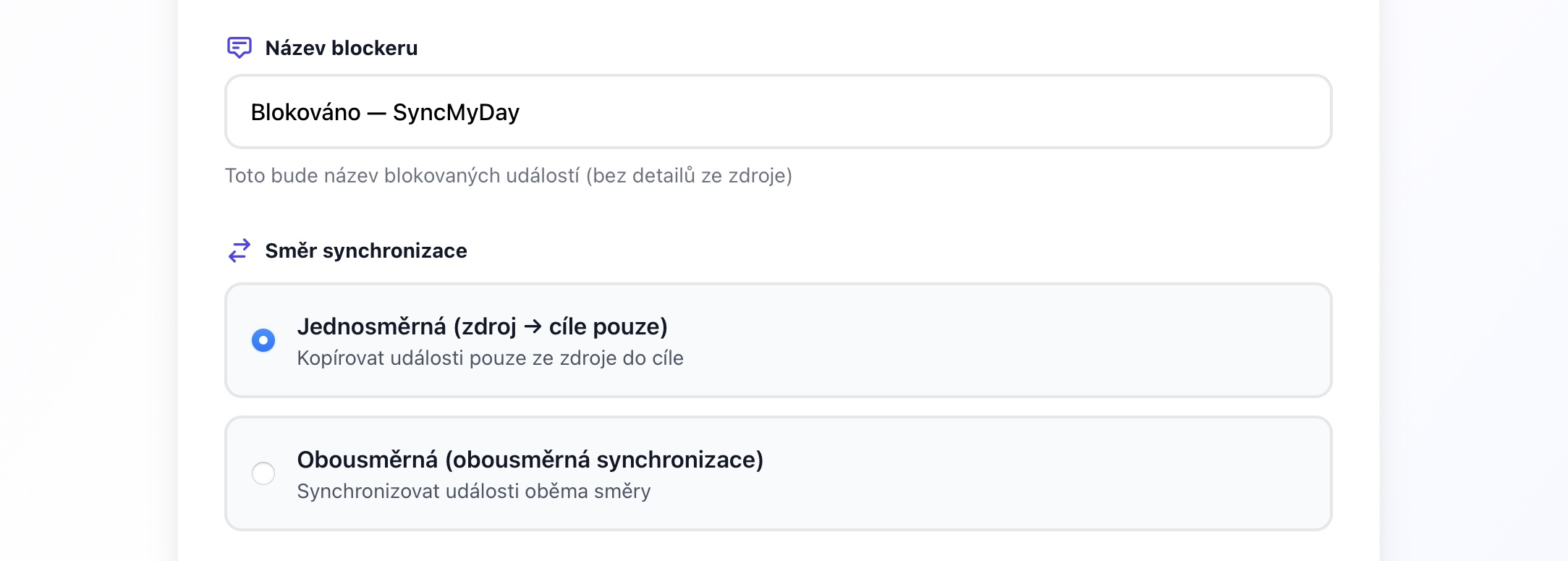
Zadajte nazov pre blokujuce udalosti
Nastavte filtre (Volitelne, ale odporucane)
Filtre kontroluju, ktore udalosti sa synchronizuju. Tu mozete doladit svoju synchronizaciu.
Dostupne filtre:
Synchronizovat iba zaneprazdnene udalosti
Synchronizovat iba udalosti oznacene ako "Zaneprazdneny". Preskocit udalosti oznacene ako "Volny" alebo "Predbezne".
Pouzitie: Zabranit predbeznym schodzam v blokovani ostatnych kalendarov, kym nie su potvrdene.
Ignorovat celodenne udalosti
Nesynchronizovat celodenne udalosti ako su sviatky, narodeniny alebo dni mimo kancelarie.
Pouzitie: Celodenne udalosti casto nemusia blokovat ostatne kalendare (napr. verejne sviatky).
Zapnut casovy a denny filter
Synchronizovat iba udalosti, ktore spadaju do specifickych hodin a dni.
Pouzitie: Blokovat iba pracovny kalendar pocas pracovnej doby. Osobne udalosti vecer alebo cez vikendy sa nebudu synchronizovat.
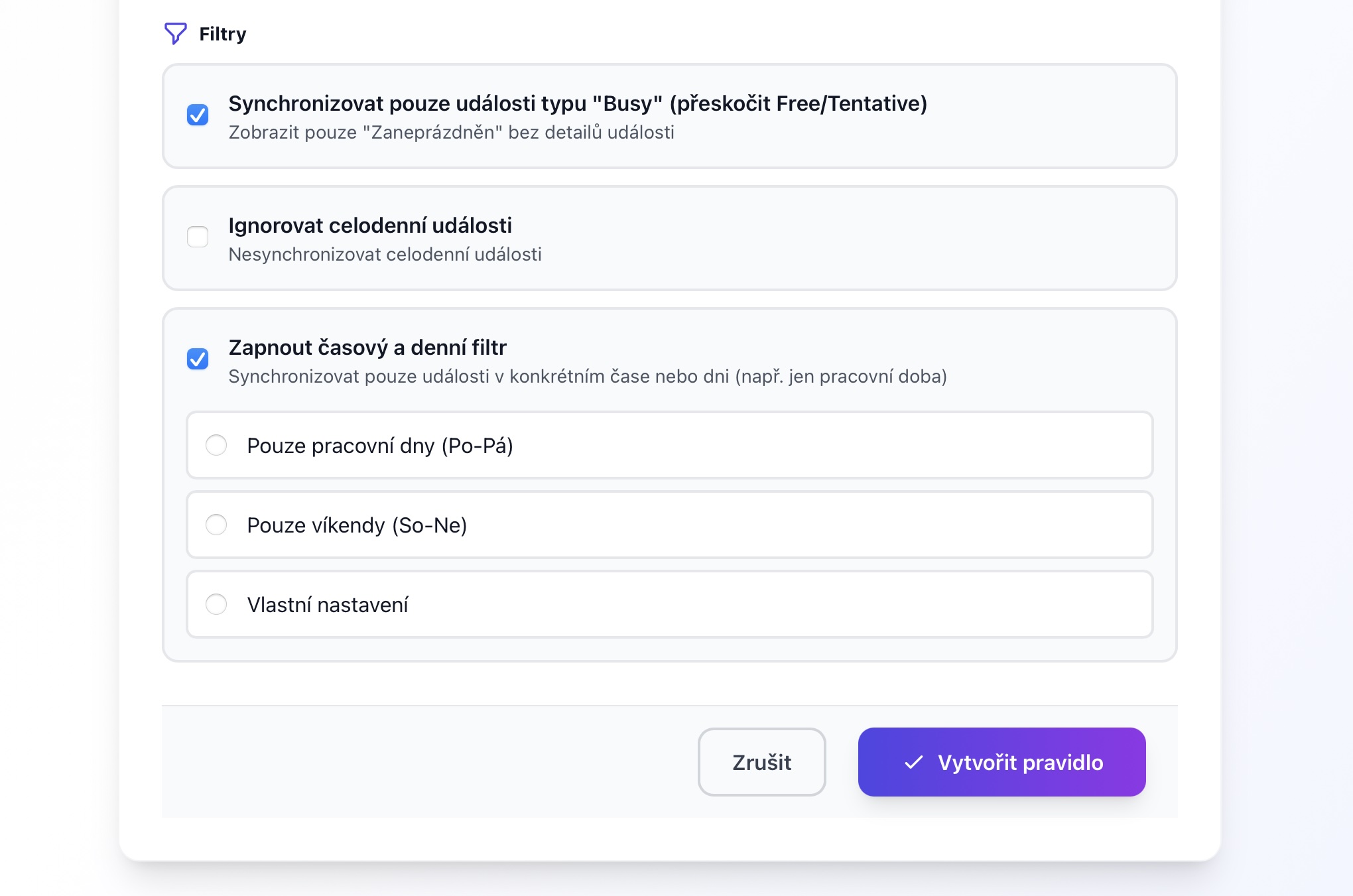
Nastavte filtre (volitelne) pre specificke pripady
Skontrolujte a ulozte
Skontrolujte nastavenia pravidla synchronizacie a kliknite na "Vytvorit pravidlo synchronizacie" alebo "Ulozit".
Pravidlo synchronizacie vytvorene!
Vase kalendare sa teraz automaticky synchronizuju. Co sa stane dalej:
- Pociatocna synchronizacia: Vsetky existujuce udalosti z vasho zdrojoveho kalendara budu synchronizovane pocas minut
- Aktualizacie v realnom case: Nove, aktualizovane alebo zmazane udalosti sa budu synchronizovat automaticky
- Mozete pozastavit alebo upravit: Pravidlo synchronizacie kedykolvek zo stranky Pravidla synchronizacie
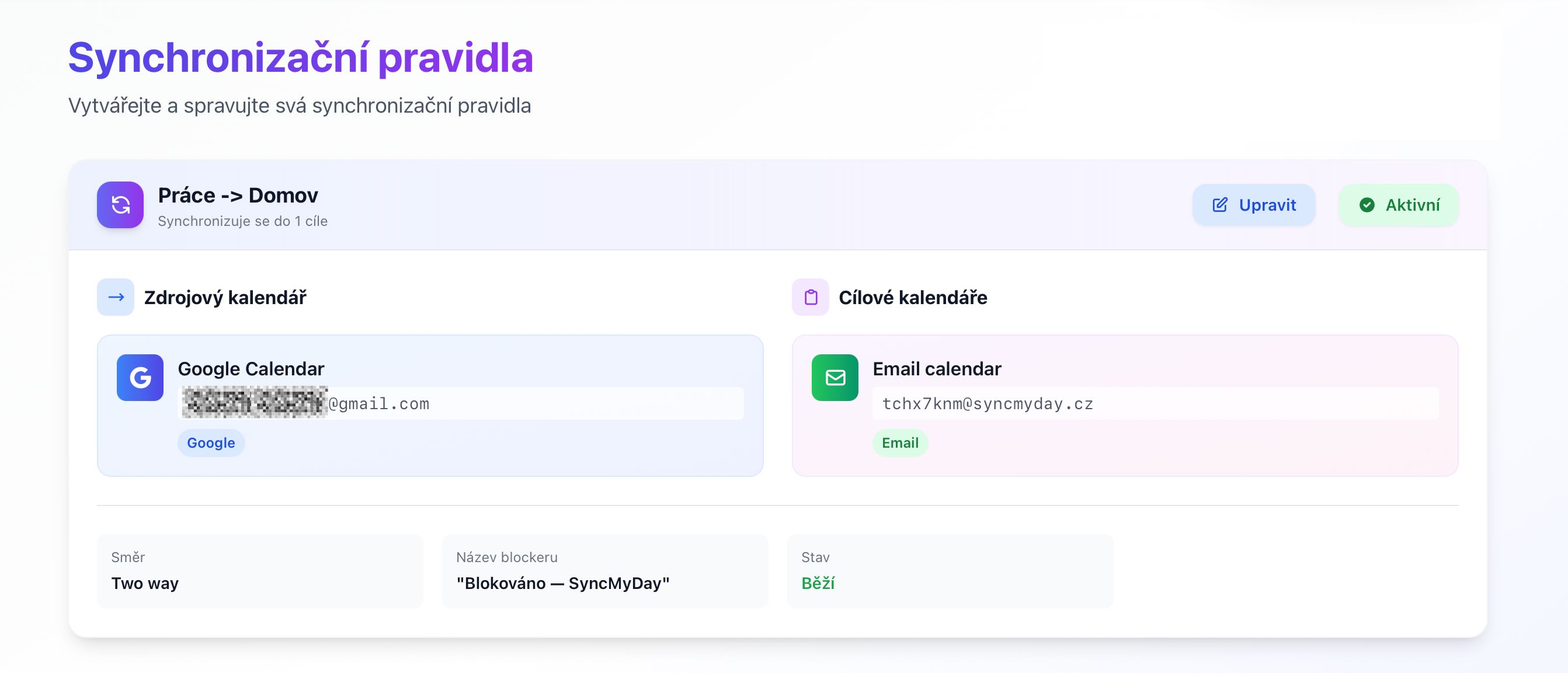
Vase pravidlo synchronizacie je aktivne a funkcne!
Bezne priklady pravidiel synchronizacie
Osobny -> Praca
- Zdroj: Osobny kalendar Google
- Ciel: Pracovny kalendar Outlook
- Nazov: "Osobny cas"
- Filtre: Iba pracovna doba (9-17, Po-Pia), Iba zaneprazdnene udalosti
- Vysledok: Kolegovia vidia, ze ste zaneprazdneni pocas osobnych schodzok, ale iba pocas pracovnej doby
Praca -> Osobny
- Zdroj: Pracovny kalendar Outlook
- Ciel: Osobny kalendar Google
- Nazov: "Pracovna schodzka"
- Filtre: Ignorovat celodenne udalosti, Iba zaneprazdnene udalosti
- Vysledok: Vas osobny kalendar ukazuje, kedy mate pracovne schodzky (uzitocne pre rodinne planovanie)
Rodinny kalendar -> Praca
- Zdroj: Zdielany rodinny kalendar Google
- Ciel: Pracovny kalendar
- Nazov: "Rodinny zavazok"
- Filtre: Iba pracovna doba
- Vysledok: Tim vie, ze nie ste k dispozicii kvoli rodinnym udalostiam ako je vyzdvihnutie deti zo skoly
Viac osobnych -> Praca
- Zdroj: Osobny kalendar
- Ciele: Pracovny Google + Pracovny Outlook + Pracovny iCloud
- Nazov: "Zaneprazdneny"
- Filtre: Pracovna doba, Iba zaneprazdnene
- Vysledok: Zablokujte vsetky vase pracovne kalendare naraz
Sprava pravidiel synchronizacie
Pozastavit pravidlo synchronizacie
Potrebujete docasne zastavit synchronizaciu? Kliknite na tlacidlo "Pozastavit" pri akokolvek pravidle synchronizacie. Blokovacie udalosti zostanu, ale nove nebudu vytvarane, kym ju neobnovite. Skvele pre dovolenku alebo zmeny projektu.
Upravit pravidlo synchronizacie
Kliknite na "Upravit" pre zmenu akehokolvek nastavenia—filtre, nazov blokatora, cielove kalendare atd. Zmeny sa vztahuju na nove blokovacie udalosti. Existujuce blokatory zostavaju bez zmeny, ak sa nezmeni zdrojova udalost.
Zmazat pravidlo synchronizacie
Kliknite na "Zmazat" pre trvale odstranenie pravidla synchronizacie. Vsetky blokovacie udalosti vytvorene tymto pravidlom budu automaticky zmazane z vasich cielovych kalendarov. Tato akcia sa neda vratit spat.
Riesenie problemov
Skontrolujte tieto veci:
- Stav pravidla synchronizacie je "Aktivny" (nie je pozastavene)
- Zdrojovy a cielovy kalendar zobrazuju stav "Aktivny"
- Udalost splna kriteria filtra (skontrolujte stav zaneprazdnenosti, celodenne, pracovnu dobu)
- Pockajte niekolko minut (CalDAV kalendare kontroluju kazdych 15 minut)
- Skontrolujte, ci bola dokoncena pociatocna synchronizacia (hladajte casove razitko synchronizacie)
Upravte svoje filtre:
- Prilis vela? Povolte "Ignorovat celodenne udalosti" alebo "Iba zaneprazdnene udalosti" alebo obmedzit na pracovnu dobu
- Prilis malo? Zakazte filtre pre synchronizaciu vsetkych udalosti, alebo upravte pracovnu dobu pre zahrnutie viac casu
- Tip: Upravte pravidlo synchronizacie a skuste rozne kombinacie filtrov, kym nebude fungovat pre vase potreby
To je obvykle problem s casovym pasmom:
- Skontrolujte casove pasmo uctu v Nastaveniach
- Overte nastavenie casoveho pasma zdrojoveho kalendara
- Skontrolujte nastavenie casoveho pasma cieloveho kalendara
- Ak pouzivate CalDAV, uistite sa, ze je casove pasmo spravne naconfigurovane v kalendarovej sluzbe
Dalsie kroky
Pripojte viac kalendarov
Pridajte dalsie pripojenia kalendarov pre vytvorenie dalsich pravidiel synchronizacie.
Pozrite sa na FAQ
Dalsie odpovede na caste otazky o SyncMyDay.
Architektura synchronizacneho enginu
Ked vytvorite pravidlo synchronizacie, stane sa toto:
- Pociatocna synchronizacia: Vsetky udalosti zo zdrojoveho kalendara v casovom rozmedzí (predvolene: minulych 7 dni, buducich 90 dni) su synchronizovane
- Registracia webhookov: Pre Google/Microsoft su registrovane webhooky na prijem notifikacii v realnom case
- Spracovanie udalosti: Kazda udalost je skontrolovana proti filtrom pred vytvorenim blokatora
- Vytvorenie blokatora: Nova udalost je vytvorena v cielovych kalendaroch s vasim vlastnym nazvom
- Sledovanie: Databazovy zaznam prepaja zdrojovu udalost s blokovacimi udalostami pre buduce aktualizacie/mazanie
Realny cas vs. Polling
- Google & Microsoft: Realny cas cez webhooky (latencia 1-2 minuty)
- CalDAV & E-mail: Polling kazdych 15 minut
- Obnovenie webhookov: Automaticke kazde 3-7 dni (lisi sa podla poskytovatela)
Spracovanie filtrov
Filtre su aplikovane v tomto poradi:
- Kontrola, ci je udalost celodenna (ak je povolene "Ignorovat celodenne udalosti")
- Kontrola stavu udalosti (ak je povolene "Iba zaneprazdnene udalosti")
- Kontrola, ci cas udalosti spada do pracovnej doby (ak je naconfigurovane)
- Kontrola, ci den udalosti je zahrnuty vo vybranych dnoch (ak je povolena pracovna doba)
Udalost musi prejst VSETKYMI povolenymi filtrami, aby bola synchronizovana.
Prevencia duplicit
SyncMyDay zabranuje duplicitnym blokovacim udalostiam pomocou:
- Jedinecnych identifikatorov prepajajucich zdrojove udalosti s blokatormi
- Hash-based detekcie existujucich blokatorov
- Cistenia osirenych blokatorov pri zmazani pravidiel
Vykon
- Databaza: Indexovane podla pouzivatela, kalendara a pravidla synchronizacie pre rychle vyhladavanie
- Caching: Tokeny pripojenia a metadata su ulozene v cache v Redis (ak je k dispozicii)
- Fronty: Velke operacie synchronizacie su spracovane v pozadi
- Obmedzenie rychlosti: API volania su throttlovane pre respektovanie limitov poskytovatelov