Centrum pomoci
Pripojenie e-mailoveho kalendara
Prijimajte pozvanky do kalendara e-mailom
Co je e-mailovy kalendar?
E-mailovy kalendar je unikatny sposob synchronizacie kalendarov prostrednictvom preposielania pozvanok do kalendara (subory .ics) e-mailom. To je idealne pre kalendare, ktore nemaju API pristup, alebo ked chcete urcite kalendare udrzat uplne oddelene.
Ako to funguje: Ked su v kalendari zdroja vytvorene udalosti, SyncMyDay odesle e-mailove pozvanky na specialnu adresu. Tieto pozvanky sa automaticky zobrazia ako blokovacie udalosti.
Kedy pouzivat e-mailove kalendare
Skvele pre
- Kalendare bez podpory API
- Starsie e-mailove klienty (Thunderbird, Lotus Notes)
- Prijimanie blokovacich pozvanok do e-mailovej schranky
- Jednoduchu jednosmernu synchronizaciu
- Maximalne sukromie (udalosti iba cez zabezpeceny e-mail)
Zvazte alternativy, ak
- Potrebujete synchronizaciu v realnom case (e-mail ma oneskorenie)
- Vas kalendar podporuje API pristup (Google, Microsoft)
- Potrebujete obojsmernu synchronizaciu
- Chcete automaticke prijatie (e-mailove kalendare vyzaduju manualne akcie)
Dva sposoby pouzitia e-mailovych kalendarov
Prijimanie blokatorov e-mailom
Ked mate udalosti v kalendari Google/Microsoft, SyncMyDay odesle e-mailove pozvanky na lubovolnu vami zadanu e-mailovu adresu. Tieto pozvanky mozete prijat vo svojom e-mailovom klientovi (Outlook, Thunderbird atd.) a objavia sa vo vasom kalendari.
Preposielanie pozvanok do SyncMyDay
Ziskajte jedinecnu e-mailovu adresu od SyncMyDay (napr. abc123@syncmyday.com). Ked obdrzite pozvanky do kalendara na tuto adresu, SyncMyDay automaticky vytvori blokovacie udalosti v ostatnych pripojenych kalendaroch.
Sprievodca nastavenim
Prejdite na Pripojenia kalendarov
Prejdite na Kalendare v menu, alebo chodte na stranku Pripojenia kalendarov.
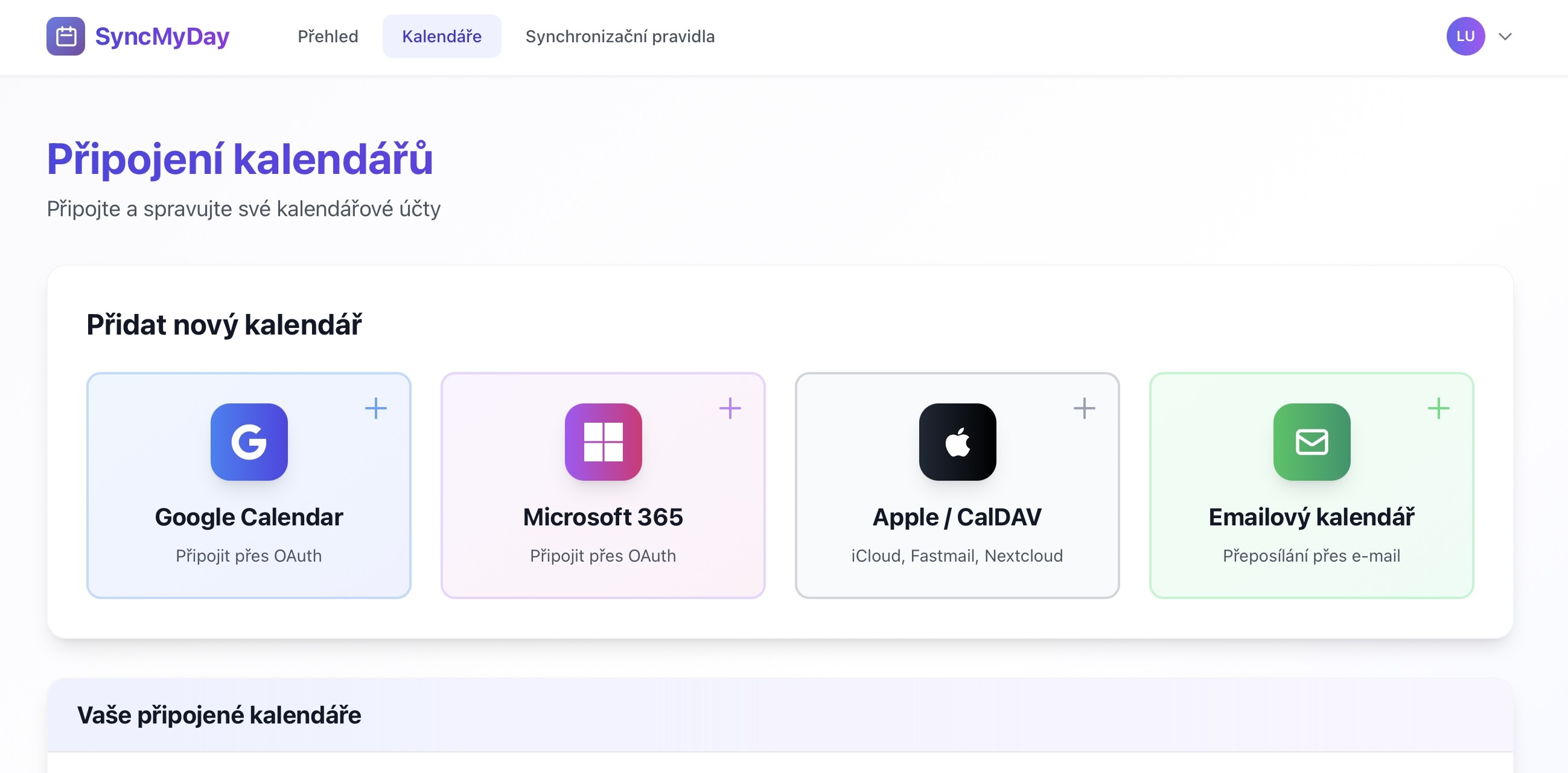
Prejdite na stranku Pripojenia kalendarov
Kliknite na "Pripojit e-mailovy kalendar"
Najdite a kliknite na tlacidlo E-mailovy kalendar s ikonou obalky.
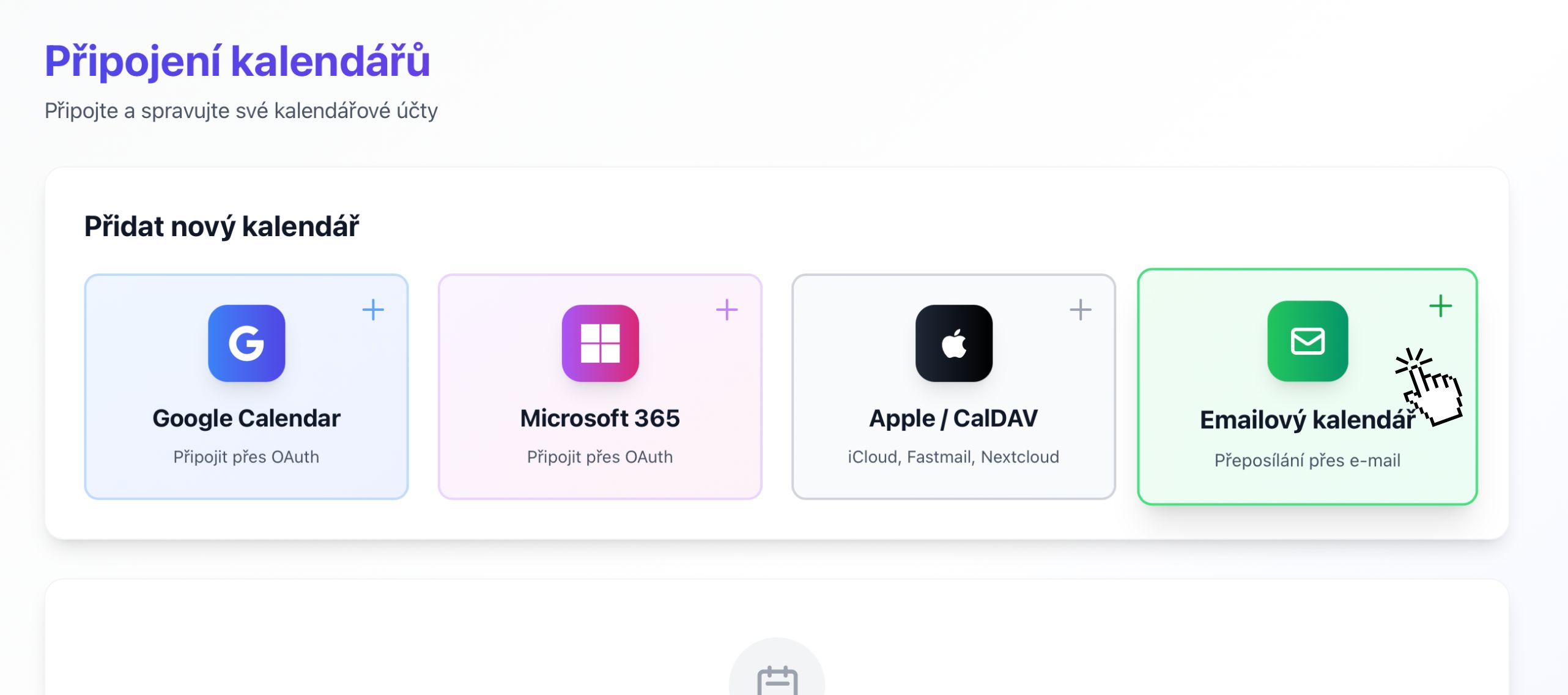
Kliknite na zelene tlacidlo "Emailovy kalendar"
Vyberte metodu nastavenia
Uvidite dve moznosti:
Moznost A: Prijimanie pozvanok
Zadajte e-mailovu adresu, na ktorej chcete prijimat pozvanky do kalendara. Tento e-mail by mal byt pripojeny k aplikacii kalendara (Outlook, Thunderbird, Apple Mail atd.).
Priklad: moja-praca@firma.sk
Moznost B: Ziskanie jedinecnej adresy
SyncMyDay vygeneruje pre vas jedinecnu e-mailovu adresu (napr. abc123@syncmyday.com). Preposielajte pozvanky do kalendara na tuto adresu a my ich automaticky spracujeme.
Nie je potrebne zadavat e-mail—staci kliknut na "Vygenerovat adresu"
Mozete pouzit obe metody! Vytvorte jeden e-mailovy kalendar pre prijimanie pozvanok a dalsi pre odosielanie pozvanok do SyncMyDay.
Dajte mu nazov
Zadajte popisny nazov pre tento e-mailovy kalendar, napriklad:
Pracovny e-mailovy kalendarThunderbird kalendarOutlook Desktop
To vam pomoze identifikovat, ktory e-mailovy kalendar je ktory, ak vytvorite viac.
Ulozit a pripojit
Kliknite na "Pripojit" alebo "Ulozit". Vas e-mailovy kalendar sa objavi v zozname pripojeni.
E-mailovy kalendar pripojeny!
- Ak ste zvolili Moznost A: Budete dostavat e-mailove pozvanky na zadanu adresu, ked budu synchronizovane udalosti
- Ak ste zvolili Moznost B: Skopirujte jedinecnu adresu a nastavte preposielanie e-mailov (dalsi krok)
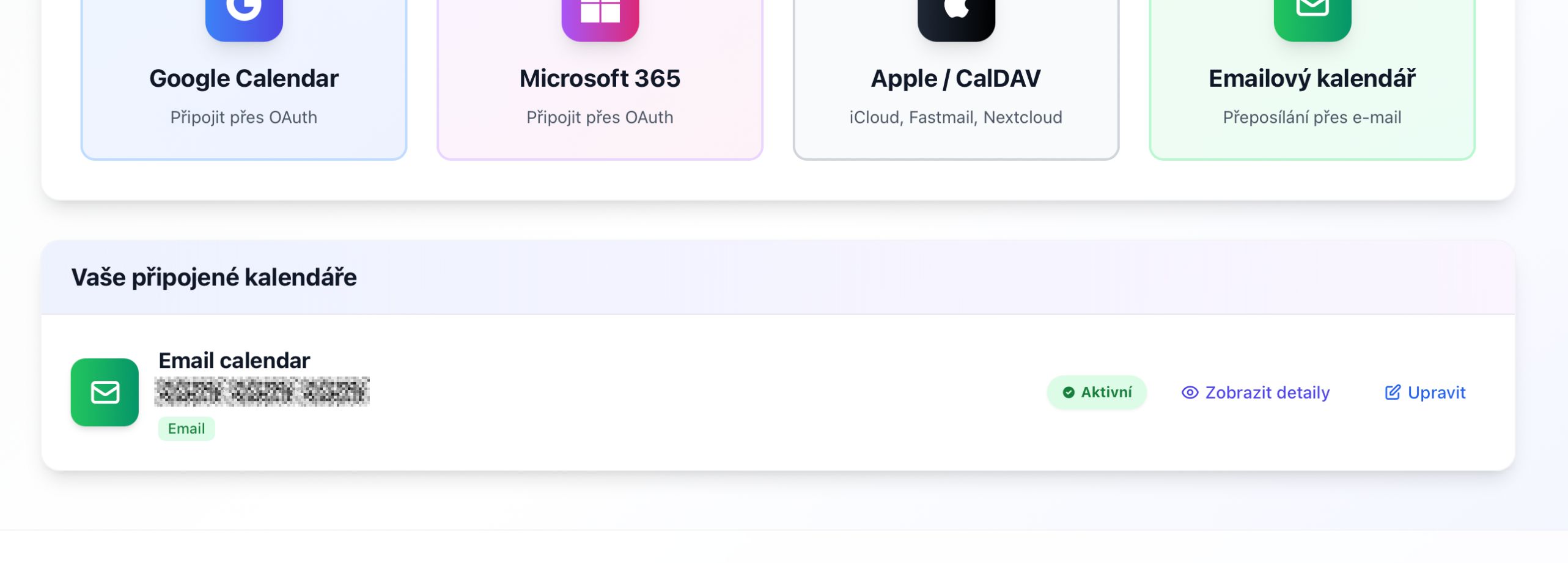
Vas e-mailovy kalendar je uspesne pripojeny a aktivny
Nastavenie preposielania e-mailov (Moznost B)
Ak ste si zvolili ziskanie jedinecnej adresy SyncMyDay, musite na nu nastavit preposielanie pozvanok do kalendara:
Gmail
- Prejdite do Nastaveni Gmailu (-> Zobrazit vsetky nastavenia)
- Kliknite na zalozku "Preposielanie a POP/IMAP"
- Kliknite na "Pridat adresu pre preposielanie"
- Zadajte vasu adresu SyncMyDay (napr.
abc123@syncmyday.com) - Gmail odesle potvrdovaci kod na tuto adresu (skontrolujte s nami!)
- Po potvrdeni nastavte filter pre preposielanie iba pozvanok do kalendara
Outlook / Microsoft 365
- Prejdite do Nastaveni Outlooku (-> Zobrazit vsetky nastavenia Outlooku)
- Prejdite na Posta -> Preposielanie
- Povolte preposielanie a zadajte vasu adresu SyncMyDay
- Ulozte zmeny
- Volitelne vytvorte pravidlo pre preposielanie iba e-mailov s prilohou
.ics
@
Ostatni e-mailovi klienti
Vacsina e-mailovych klientov podporuje pravidla preposielania. Hladajte:
- Filtre alebo Pravidla v nastaveniach
- Vytvorte pravidlo: "Ked sprava ma prilohu s priponou
.ics" - Akcia: "Preposlat na
vase-syncmyday-adresa@syncmyday.com"
Vytváranie pravidiel synchronizacie s e-mailovymi kalendarmi
Akmile je vas e-mailovy kalendar pripojeny, mozete ho pouzit v pravidlach synchronizacie:
Ako ciel (prijimanie pozvanok)
Priklad: Google Calendar -> E-mailovy kalendar
- Zdroj: Vas pracovny kalendar Google
- Ciel: E-mailovy kalendar s
osobne@example.com - Vysledok: Budete dostavat e-mailove pozvanky na vsetky pracovne udalosti na osobny e-mail
Ako zdroj (preposielanie pozvanok)
Priklad: E-mailovy kalendar -> Google Calendar
- Zdroj: E-mailovy kalendar s jedinecnou adresou
- Ciel: Vas pracovny kalendar Google
- Vysledok: Pozvanky do kalendara zaslane na vasu jedinecnu adresu sa zobrazia ako blokatory v Google
Ako funguje synchronizacia e-mailoveho kalendara
Proces
Udalost vytvorena v zdrojovom kalendari
Vo vasom zdrojovom kalendari (napr. Google Calendar) je vytvorena udalost
SyncMyDay detekuje zmenu
Obdrzime webhook notifikaciu (pre API kalendare) alebo kontrolujeme zmeny (CalDAV/E-mail)
Odoslana e-mailova pozvanka
E-mail s prilohou .ics je odoslany na adresu vasho e-mailoveho kalendara
Udalost sa zobrazi v e-mailovom klientovi
Vas e-mailovy klient (Outlook, Thunderbird atd.) obdrzi pozvanku a zobrazi ju vo vasom kalendari
Caste otazky
Zalezi na nastaveni vasho e-mailoveho klienta. Vacsina e-mailovych klientov moze byt nakonfigurovana pre automaticke prijatie pozvanok do kalendara. Skontrolujte nastavenia kalendara pre "Automaticky prijimat ziadosti o schodzky" alebo podobne moznosti.
Dorucenie e-mailu je obvykle rychle (pocas minut), ale zavisi od oneskoreni e-mailoveho servera. Ak potrebujete okamzitu synchronizaciu, zvazte pouzitie Google Calendar alebo Microsoft 365, ktore podporuju webhooky v realnom case.
Ano! Mozete vytvorit viac e-mailovych kalendarov, ktore vsetky odosielaju na tu istu e-mailovu adresu. To je uzitocne, ak chcete prijimat blokatory z roznych zdrojovych kalendarov na jednom mieste.
Skontrolujte tieto mozne problemy:
- E-mail zachyteny v zlozke spam
- Pravidlo preposielania e-mailov zakazane alebo nefunkcne
- Pripojenie e-mailoveho kalendara neaktivne (skontrolujte stranku Pripojenia)
- Pravidlo synchronizacie pozastavene alebo zmazane
Dalsie kroky
Vytvorte pravidlo synchronizacie
Nastavte svoju prvu synchronizaciu pomocou e-mailoveho kalendara.
Pozrite sa na FAQ
Dalsie odpovede na caste otazky o SyncMyDay.
Format iCalendar (RFC 5545)
E-mailove pozvanky pouzivaju format iCalendar (.ics):
- Standardny MIME typ:
text/calendar - Obsahuje komponenty
VEVENTs datami udalosti - Zahrnuje
VTIMEZONEpre informacie o casovom pasme - Pouziva
METHOD:REQUESTpre pozvanky
Odosielanie e-mailov
Odchadzajuce e-mailove pozvanky:
- Odosielane cez system Laravel Mail (SMTP, Mailgun, SendGrid atd.)
- Adresa odosielatela: Naconfigurovane v
.env(MAIL_FROM_ADDRESS) - Odpoved na:
noreply@syncmyday.com - Priloha: subor
event.ics
Prijimanie e-mailov (Inbound)
Pre jedinecne adresy SyncMyDay:
- IMAP polling: Kontroluje schranku kazdu minutu
- Podpora webhookov: Mailgun, SendGrid, Postmark
- Parsuje prilohy
.ics - Extrahuje token z adresy prijemcu (napr.
abc123zabc123@syncmyday.com)
Spracovanie udalosti
- Parsovanie suboru
.icspre komponentyVEVENT - Extrahovanie
DTSTART,DTEND,SUMMARY,STATUS - Konverzia do interneho formatu udalosti
- Kontrola pravidiel synchronizacie a vytvorenie blokovacich udalosti
- Oznacenie e-mailu ako spracovaneho (presun do zlozky "Spracovane" alebo zmazanie)
Bezpecnost
- Jedinecne adresy su kryptograficky generovane tokeny
- Validacia tokenu zabranuje neopravnenemu pristupu
- Obsah e-mailu je pred spracovanim sanitizovany
- Spracovavane su iba prilohy
.ics