Centrum pomoci
Pripojenie CalDAV kalendara
Pre Fastmail, Nextcloud, SOGo a dalsich poskytovatelov CalDAV
Co je CalDAV?
CalDAV je otvoreny standardny protokol na pristup ku kalendarovym datam cez internet. Mnoho kalendarovych sluzieb podporuje CalDAV, co z neho robi flexibilnu moznost na pripojenie kalendarov.
Oblubeni poskytovatelia CalDAV zahrnuju: Fastmail, Nextcloud, SOGo, Radicale, Baikal, Synology Calendar a mnoho dalsich.
Co budete potrebovat
1. URL servera
Adresa CalDAV servera od vasho poskytovatela (napr. caldav.fastmail.com)
2. Pouzivatelske meno
Obvykle vasa e-mailova adresa alebo pouzivatelske meno uctu
3. Heslo
Heslo vasho uctu alebo heslo pre aplikaciu
Oblubeni poskytovatelia CalDAV
- URL servera:
https://caldav.fastmail.com - Pouzivatelske meno: Vasa e-mailova adresa Fastmail
- Heslo: Vase heslo Fastmail (alebo heslo pre aplikaciu, ak je povolene 2FA)
- URL servera:
https://vas-nextcloud.com/remote.php/dav - Pouzivatelske meno: Vase pouzivatelske meno Nextcloud
- Heslo: Vase heslo Nextcloud alebo heslo pre aplikaciu
Tip: Pre lepsiu bezpecnost vygenerujte heslo pre aplikaciu v Nextcloud: Nastavenia -> Zabezpecenie -> Zariadenia a relacie -> Vytvorit nove heslo pre aplikaciu
- URL servera:
https://vas-sogo-server.com/SOGo/dav - Pouzivatelske meno: Vase pouzivatelske meno SOGo (casto email@domena.sk)
- Heslo: Vase heslo SOGo
- URL servera:
https://vase-nas-adresa.com:5001/calendar - Pouzivatelske meno: Vase pouzivatelske meno Synology DSM
- Heslo: Vase heslo Synology DSM
Uistite sa, ze je nainstalovany balicek Kalendar a CalDAV je povoleny v nastaveniach Kalendara.
Sprievodca krok za krokom
Zhromazdite svoje CalDAV udaje
Pred pripojenim musite najst informacie o vasom CalDAV serveri. Tie sa obvykle nachadzaju v:
- Dokumentacii pomoci vasho poskytovatela
- Stranke nastaveni uctu
- E-maile od vasho poskytovatela pri registracii
Budete potrebovat:
- URL CalDAV servera - napr.
caldav.example.comalebohttps://example.com/dav - Pouzivatelske meno - Obvykle vasa e-mailova adresa
- Heslo - Heslo vasho uctu alebo heslo pre aplikaciu
Nemozete najst svoje CalDAV udaje? Kontaktujte podporu vasho poskytovatela kalendara alebo hladajte v ich dokumentacii "CalDAV" alebo "pristup ku kalendaru tretich stran".
Prejdite na Pripojenia kalendarov
V SyncMyDay prejdite na Kalendare v menu, alebo chodte na stranku Pripojenia kalendarov.
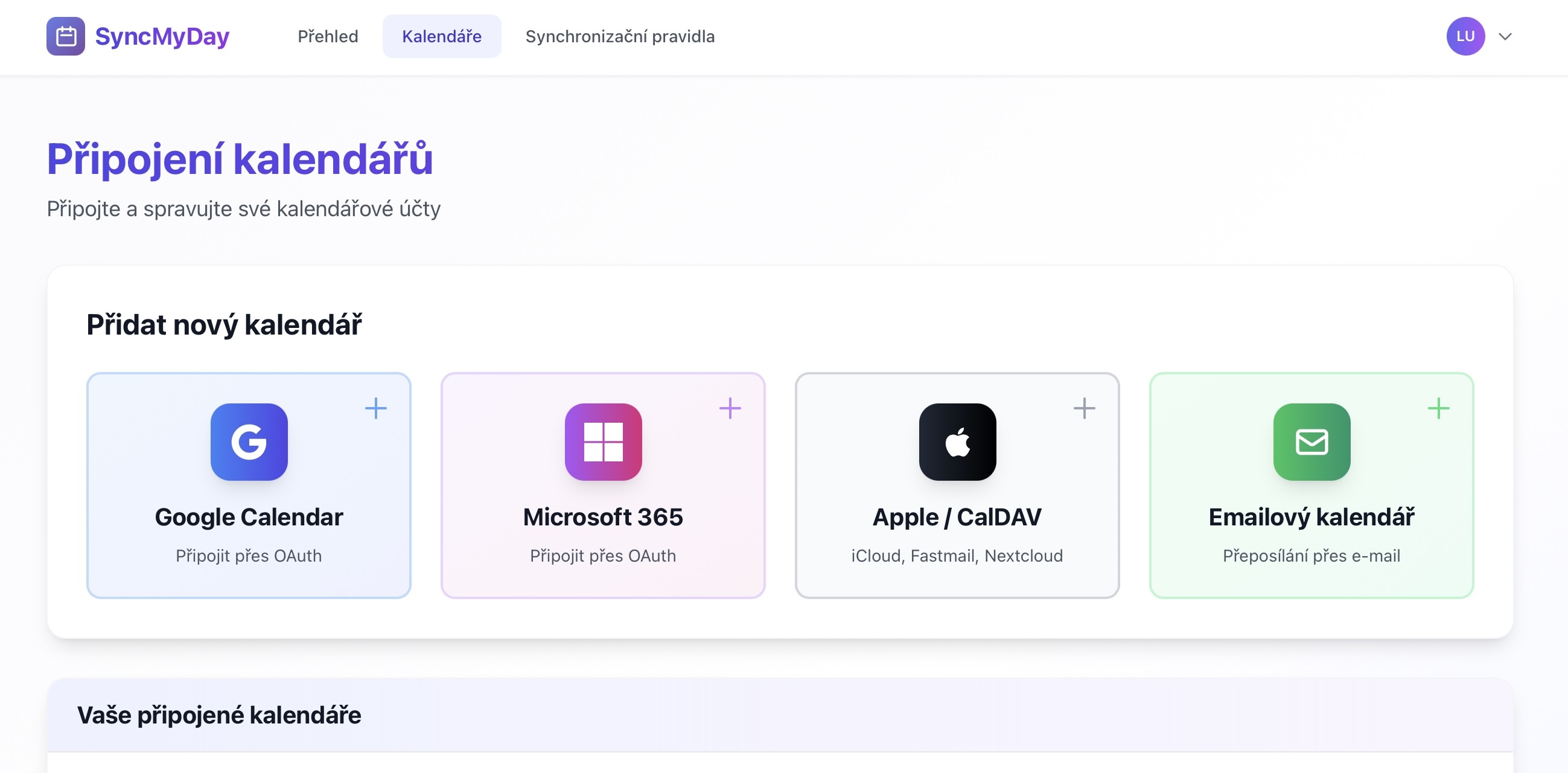
Prejdite na stranku Pripojenia kalendarov
Kliknite na "Pripojit CalDAV"
Najdite a kliknite na tlacidlo CalDAV (Generic).
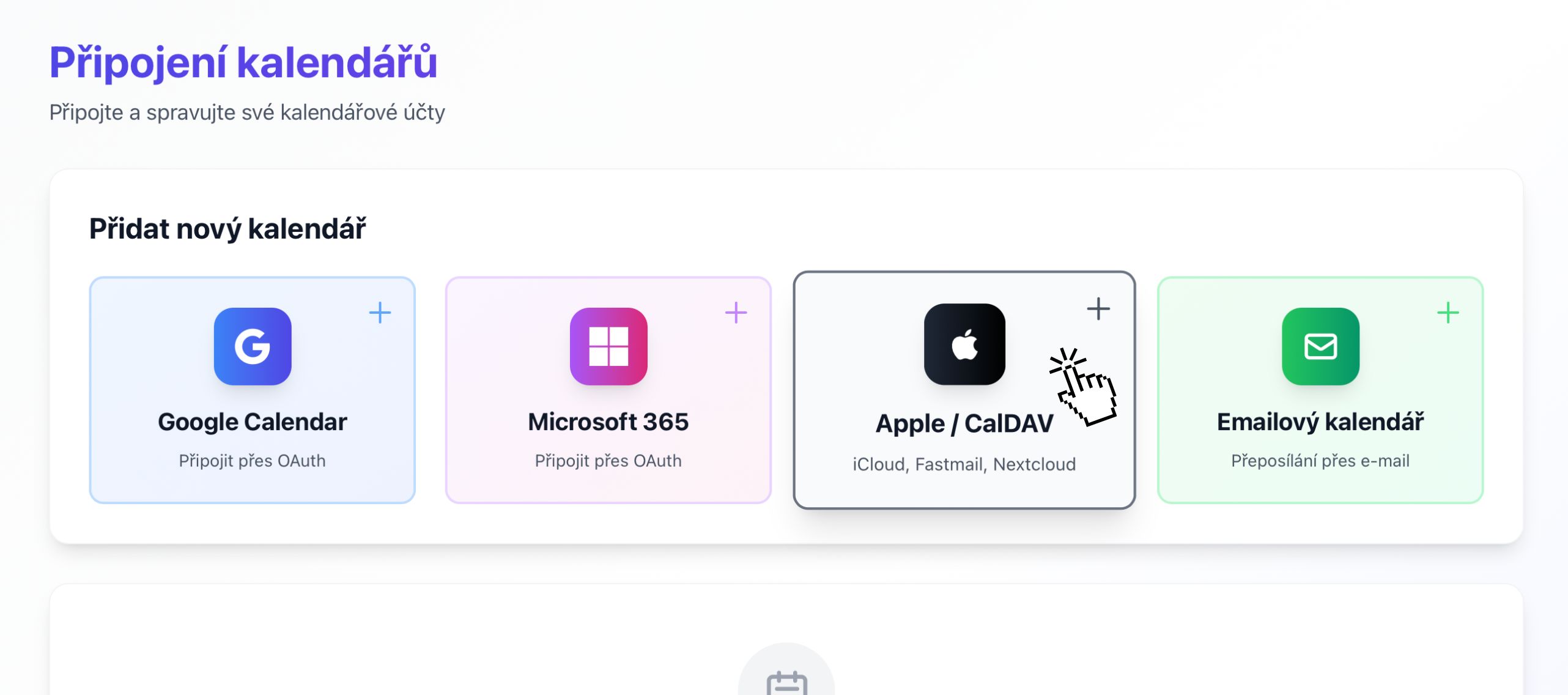
Kliknite na tlacidlo "Apple / CalDAV"
Zadajte svoje CalDAV prihlasovacie udaje
Vyplnte pripojovaci formular s udajmi, ktore ste zhromazdili:
URL CalDAV servera
Zadajte uplnu adresu CalDAV servera. Priklady:
https://caldav.fastmail.comhttps://nextcloud.example.com/remote.php/davcaldav.example.com(https:// pridame automaticky)
Pouzivatelske meno
Obvykle vasa e-mailova adresa (napr. vy@example.com) alebo pouzivatelske meno
Heslo
Heslo vasho uctu alebo heslo pre aplikaciu (ak to vas poskytovatel vyzaduje)
Hesla pre aplikacie
Niektori poskytovatelia (ako Fastmail s 2FA) vyzaduju hesla pre aplikacie namiesto bezneho hesla. Skontrolujte dokumentaciu vasho poskytovatela.

Zadajte udaje vasho CalDAV servera
Otestujte pripojenie
Kliknite na "Pripojit" alebo "Testovat pripojenie". SyncMyDay bude:
- Overovat, ze je URL servera dosiahnutelna
- Autentifikovat pomocou vasich prihlasovacich udajov
- Objavovat dostupne kalendare
To obvykle trva 5-10 sekund.
Vyberte kalendare
Po pripojeni uvidite zoznam vsetkych kalendarov dostupnych na vasom CalDAV serveri. Vyberte, ktore chcete synchronizovat.
Typicke kalendare, ktore mozete vidiet:
- Osobny - Vas hlavny kalendar
- Praca - Pracovne udalosti
- Rodina - Zdielany rodinny kalendar
- Akekolvek vlastne kalendare, ktore ste vytvorili

Vyberte kalendare, ktore chcete synchronizovat
Pripojenie dokoncene!
Vas CalDAV kalendar je teraz pripojeny a pripraveny na pouzitie!
Co dalej?
- Vas CalDAV kalendar je pripraveny pre pravidla synchronizacie
- Udalosti sa budu synchronizovat kazdych 15 minut
- Teraz mozete vytvarat pravidla synchronizacie!
Poznamka: CalDAV nepodporuje webhooky v realnom case, takze kontrolujeme zmeny kazdych 15 minut.

Vas CalDAV kalendar je uspesne pripojeny a aktivny
Riesenie problemov
"Pripojenie sa nepodarilo" alebo "Nie je mozne sa pripojit"
Skontrolujte tieto caste problemy:
- Format URL servera: Uistite sa, ze obsahuje
https://alebo nam to dovolte pridat automaticky - Lomitka na konci: Skuste s lomitkom (
/) na konci aj bez neho - Cislo portu: Niektore servery potrebuju explicitny port (napr.
:8443) - Self-signed certifikaty: Ak pouzivate self-hosted, uistite sa, ze vas SSL certifikat je platny
- Firewall: Uistite sa, ze vas CalDAV server je pristupny z internetu
"Autentifikacia sa nepodarila" alebo "Neplatne prihlasovacie udaje"
Caste priciny:
- Nespravne pouzivatelske meno alebo heslo
- Potreba pouzit heslo pre aplikaciu (ak je povolene 2FA)
- Zly format pouzivatelskeho mena (skuste s @domena.sk aj bez)
- Ucet uzamknuty alebo deaktivovany
Riesenie: Skontrolujte prihlasovacie udaje, vygenerujte heslo pre aplikaciu, ak je potrebne, alebo kontaktujte svojho poskytovatela.
Neboli najdene ziadne kalendare
Ak pripojenie uspeje, ale neobjavia sa ziadne kalendare:
- Uistite sa, ze mate aspon jeden kalendar vo vasom ucte
- Skontrolujte, ze kalendare nie su skryte alebo archivovane
- Skuste vytvorit testovaci kalendar vo webovom rozhrani vasho poskytovatela
- Niektore CalDAV servery vyzaduju specificke principal URL (kontaktujte podporu)
Synchronizacia je pomala
CalDAV kalendare sa synchronizuju kazdych 15 minut, co je pomalsie ako Google/Microsoft:
- To je normalne kvoli obmedzeniam protokolu CalDAV
- Push notifikacie v realnom case nie su dostupne
- Frekvencia pollingu vyvazuje odozvu so zatazenim servera
Potrebujete rychlejsiu synchronizaciu? Zvazte pouzitie Google Calendar alebo Microsoft 365, ktore podporuju webhooky v realnom case.
Dalsie kroky
Pripojte dalsi kalendar
Pripojte druhy kalendar pre zahajenie synchronizacie udalosti.
Vytvorte pravidlo synchronizacie
Nastavte synchronizaciu medzi vasimi kalendarmi.
Protokol CalDAV (RFC 4791)
SyncMyDay implementuje CalDAV standard pomocou:
- PROPFIND: Objavovanie kalendarov a kalendarovych kolekcii
- REPORT: Dotazovanie kalendarovych dat (calendar-query)
- GET: Nacitanie jednotlivych kalendarovych objektov (iCalendar format)
- PUT: Vytváranie a aktualizacia udalosti
- DELETE: Odstranovanie udalosti
Objavovanie sluzby
Pouzivame WebDAV service discovery na najdenie kalendarovych kolekcii:
- Vykoname PROPFIND na poskytnutej URL
- Hladame vlastnost
calendar-home-set - Dotazujeme home set na kalendarove kolekcie
- Prezentujeme dostupne kalendare pouzivatelovi
Autentifikacia
- Basic Auth: Standardna HTTP Basic Authentication cez HTTPS
- Digest Auth: Podporovane, ak to server vyzaduje
- Prihlasovacie udaje su sifrovane v pokoji pomocou AES-256
Strategia pollingu
Pretoze CalDAV nepodporuje push notifikacie:
- Pollujeme kazdych 15 minut pre zmeny
- Pouzivame
getctag(collection tag) pre efektivnu detekciu zmien - Nacitavame iba zmenene udalosti pomocou
getetag - Minimalizujeme sirku pasma a zatazenie servera
Format iCalendar
Udalosti su vymienane vo formate RFC 5545 iCalendar:
- Parsujeme komponenty
VEVENT - Extrahujeme
DTSTART,DTEND,STATUS - Spracovavame pravidla opakovania (
RRULE) - Podporujeme konverziu casovych pasiem (
VTIMEZONE)
Zname obmedzenia
- Ziadna synchronizacia v realnom case: 15-minutovy interval pollingu
- Zavislosti servera: Vyzaduje spravnu implementaciu CalDAV
- Obmedzenia firewallu: Server musi byt pristupny z internetu