Centrum pomoci
Pripojenie Google Calendar
Rychle a bezpecne pripojenie
Preco Google Calendar?
Google Calendar je najjednoduchsi kalendar na pripojenie! Pouziva bezpecnu OAuth autentifikaciu, takze s nami nikdy nezdielate svoje heslo. Nastavenie trva menej ako 2 minuty a synchronizacia je okamzita vdaka webhookom v realnom case.
Sprievodca krok za krokom
Prejdite na Pripojenia kalendarov
Z vasho SyncMyDay dashboardu kliknite na Kalendare v hlavnom menu, alebo prejdite priamo na stranku Pripojenia kalendarov.
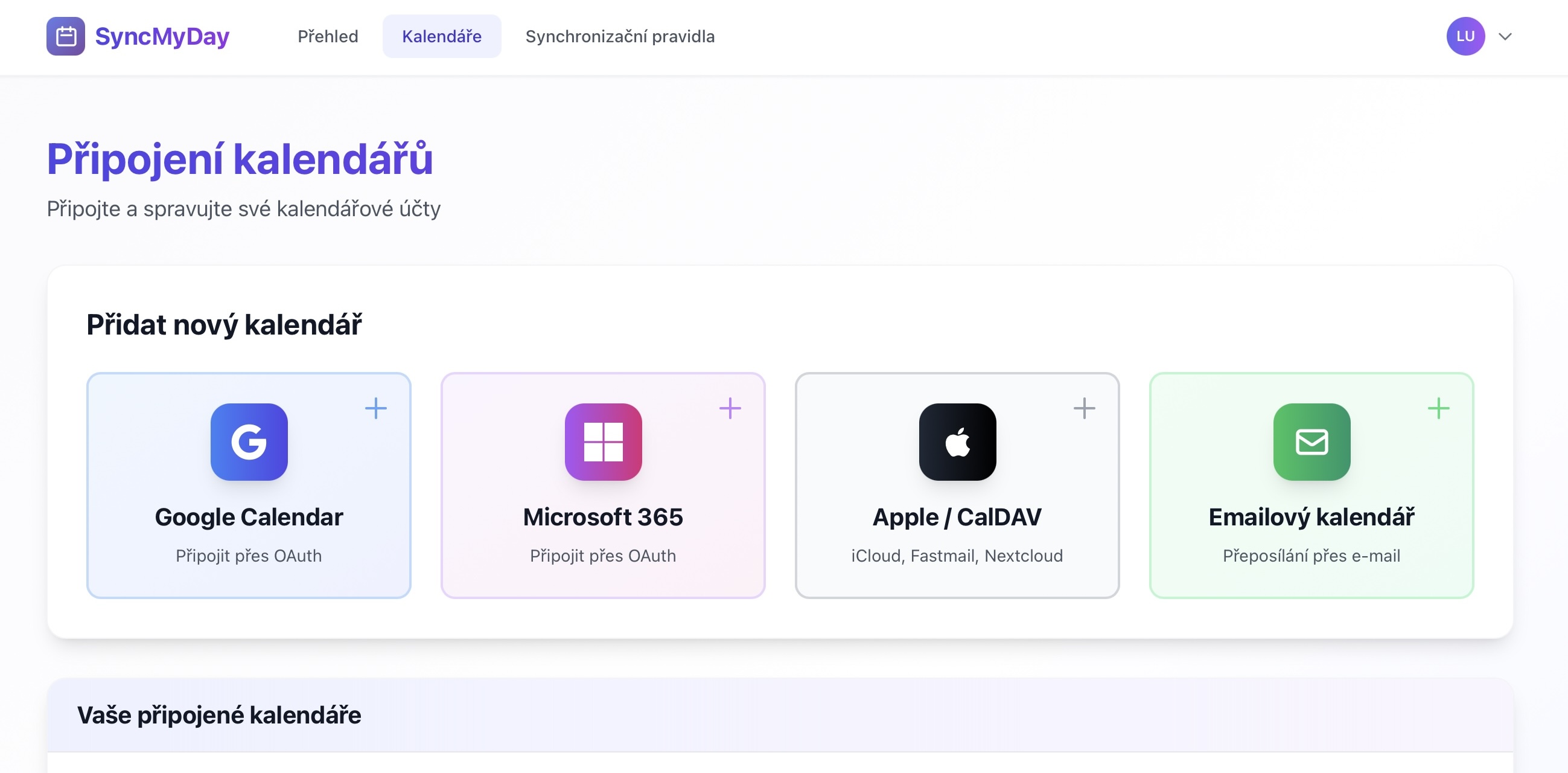
Stranka "Pripojenia kalendarov" zobrazujuca vsetky dostupne moznosti pripojenia
Kliknite na "Pripojit Google Calendar"
Na stranke Pripojenia kalendarov najdite tlacidlo Google Calendar s logom Google a kliknite nan.
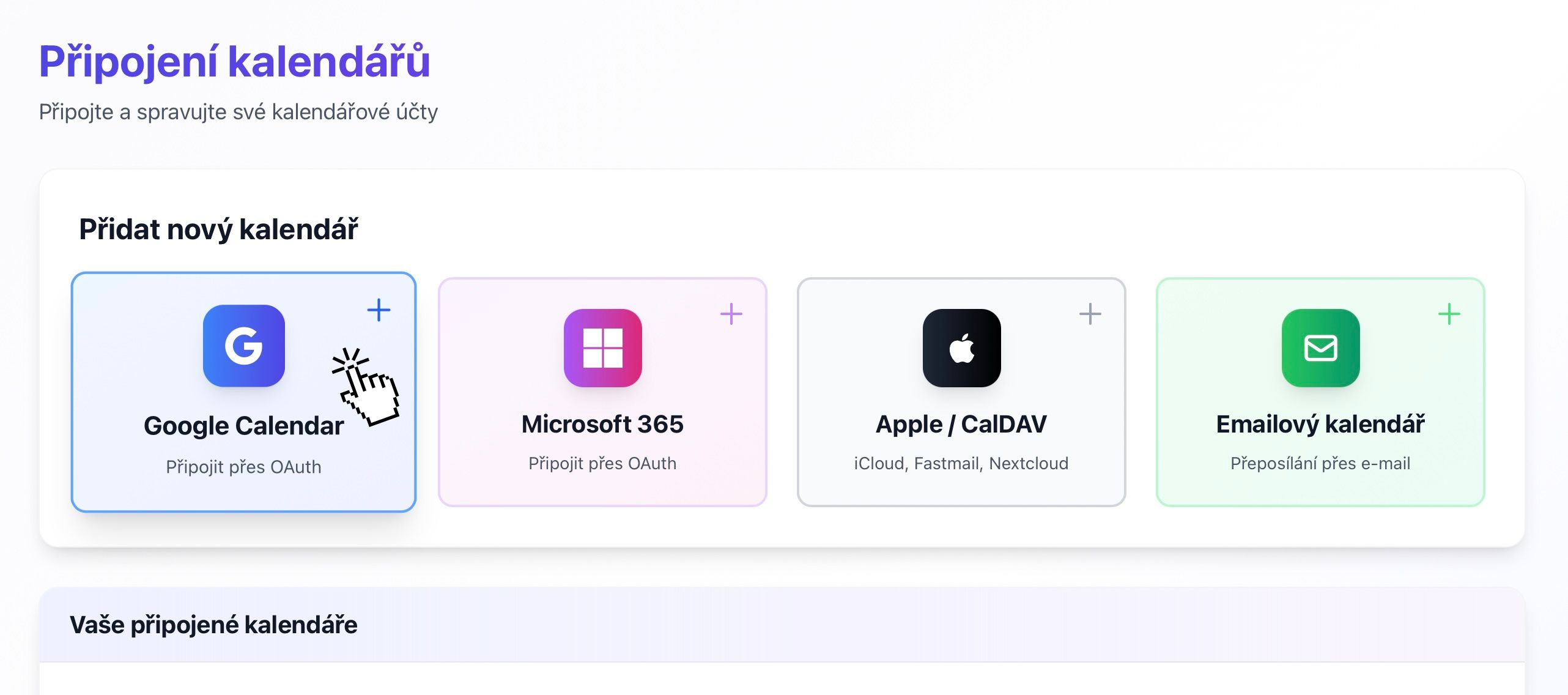
Kliknite na modre tlacidlo "Google Calendar" pre zahajenie pripojenia
Prihlaste sa pomocou Google
Budete presmerovani na bezpecnu prihlasovaciu stranku Google. Prihlaste sa pomocou Google uctu, ktory ma kalendar, ktory chcete pripojit.
Viac Google uctov?
Uistite sa, ze sa prihlasujete spravnym uctom. Viac Google uctov mozete pripojit neskor opakovanim tohto procesu.
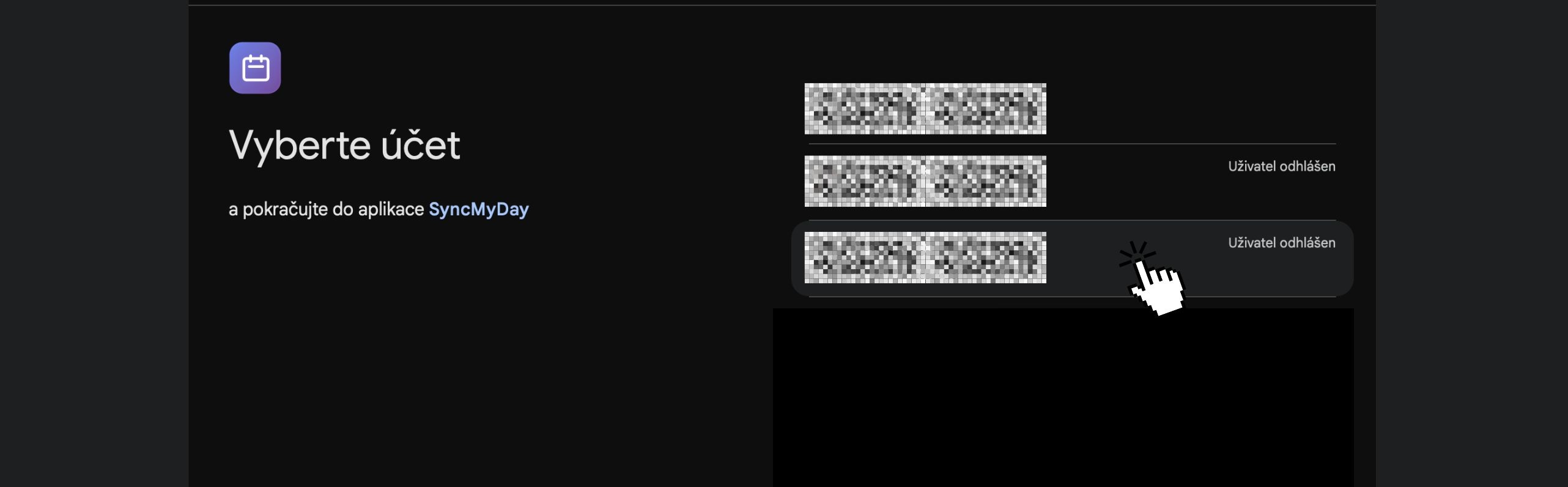
Prihlaste sa pomocou svojho Google uctu
Udelite opravnenia
Google vas poziada o povolenie pre SyncMyDay na pristup k vasmu kalendaru. Skontrolujte opravnenia a kliknite na Povolit.
Ake opravnenia SyncMyDay potrebuje?
- Zobrazit udalosti vo vsetkych vasich kalendaroch: Na citanie casov udalosti (nie nazvov/detailov)
- Pridavat a upravovat udalosti: Na vytváranie blokujucich udalosti
- Mazat udalosti: Na odstranenie blokujucich udalosti, ked su zdrojove udalosti zmazane
Nebojte sa o sukromie!
Aj ked pozadujeme opravnenie na "zobrazenie udalosti", citame iba casy zaciatku/konca a stav. Nikdy nepristupujeme ani neukladame nazvy udalosti, popisy alebo dalsie detaily.
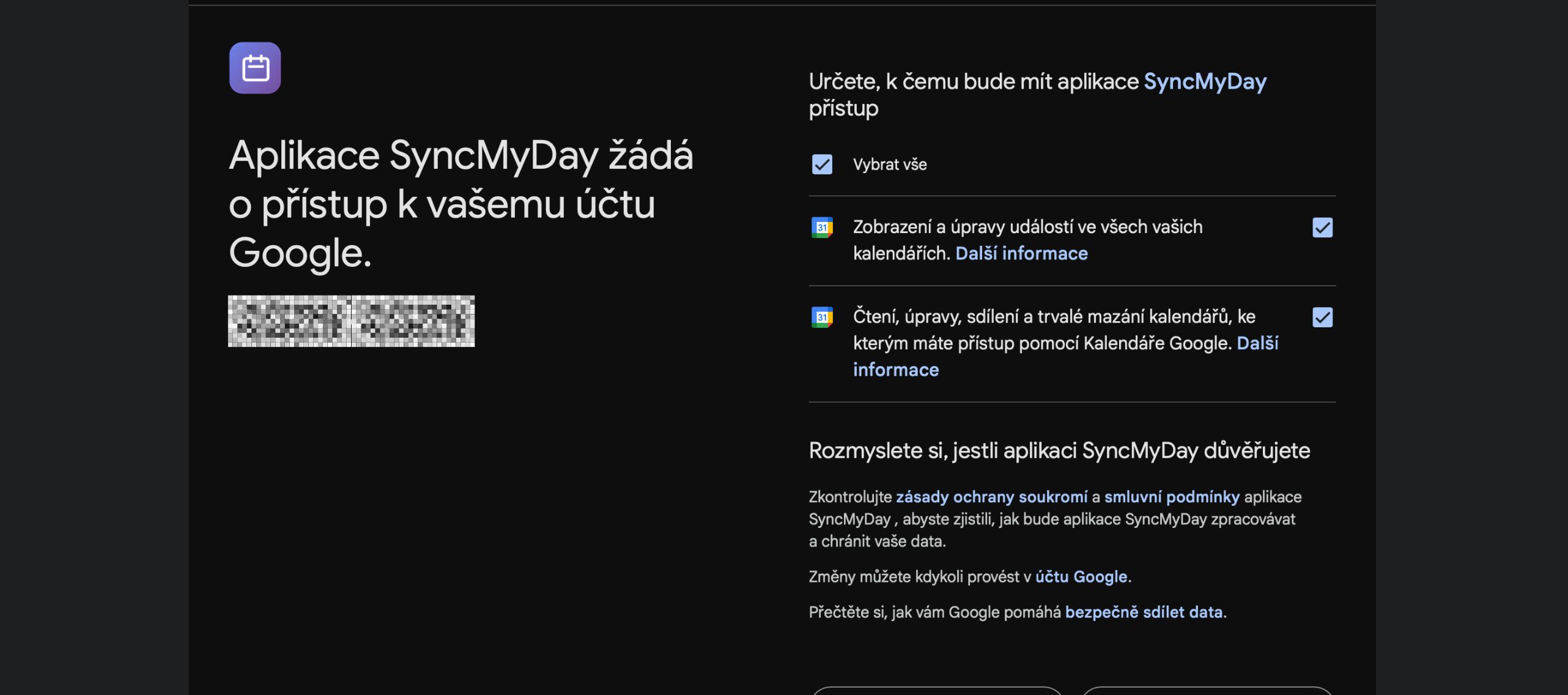
Udelite SyncMyDay opravnenia na pristup k vasmu kalendaru
Vyberte, ktore kalendare synchronizovat
Po udeleni opravneni budete presmerovani spat do SyncMyDay. Uvidite zoznam vsetkych kalendarov vo vasom Google ucte. Vyberte, ktore chcete sprístupnit pre synchronizaciu.
Pro tip: Mozete vybrat viac kalendarov z toho isteho Google uctu! To je uzitocne, ak mate oddelene kalendare pre:
- Osobne udalosti
- Rodinne udalosti
- Zdielane timove kalendare
- Projektovo specificke kalendare
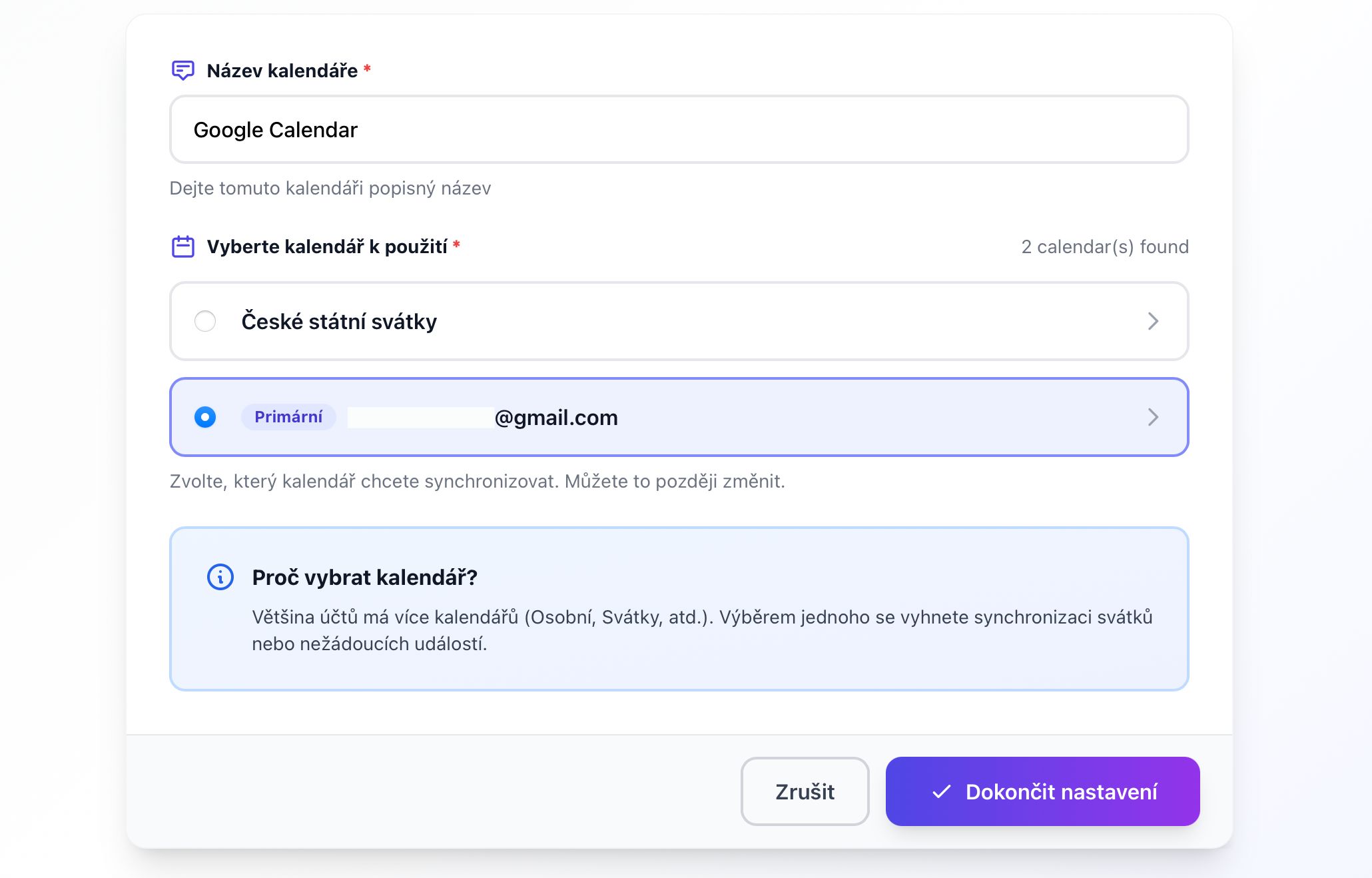
Vyberte kalendare, ktore chcete synchronizovat
Hotovo! Kalendar pripojeny
Vas Google Calendar je teraz pripojeny a objavi sa vo vasom zozname pripojeni kalendarov so zelenym stavovym odznackom "Aktivny".
Co sa stane dalej?
- Vas kalendar je pripraveny na pouzitie v pravidlach synchronizacie
- SyncMyDay bude dostavat oznamenia v realnom case, ked sa udalosti zmenia
- Teraz mozete vytvorit pravidla synchronizacie a zacat synchronizovat!
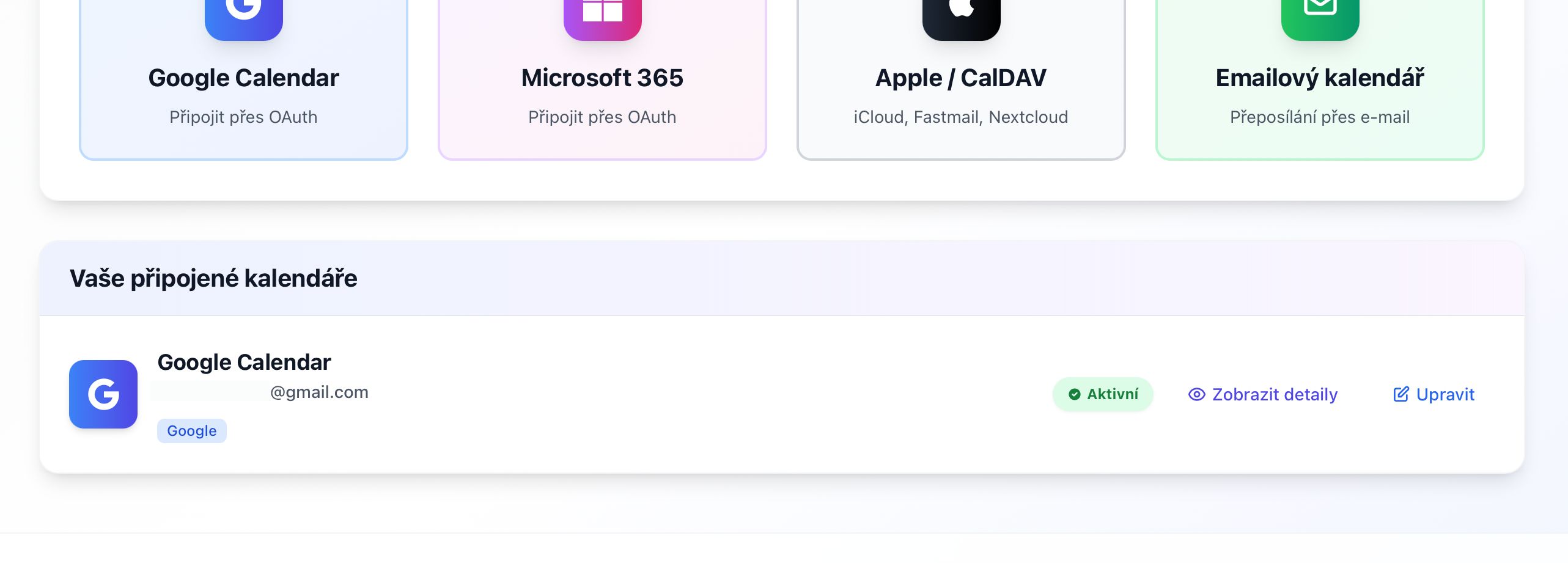
Vas Google Calendar je uspesne pripojeny a aktivny
Dalsie kroky
Pripojte dalsi kalendar
Potrebujete aspon 2 kalendare na vytvorenie pravidla synchronizacie. Pripojte pracovny kalendar, osobny kalendar alebo inu sluzbu.
Vytvorte svoje prve pravidlo synchronizacie
Naucte sa nastavit synchronizaciu medzi vasimi kalendarmi s filtrami a vlastnymi moznostami.
OAuth 2.0 Flow
SyncMyDay pouziva Google OAuth 2.0 autentifikaciu s nasledujucimi scope:
https://www.googleapis.com/auth/calendar.readonly- Citanie kalendarovych dathttps://www.googleapis.com/auth/calendar.events- Vytváranie/uprava/mazanie udalosti
Synchronizacia v realnom case
Pouzivame Google Calendar Push Notifications (webhooky) pre okamzite prijimanie aktualizacii:
- Pre kazdy pripojeny kalendar je registrovany webhook
- Google odosiela oznamenia pocas niekolkych sekund po akychkolvek zmenach udalosti
- Webhooky su automaticky obnovene kazdych 7 dni
- Ak dorucenie webhooku zlyha, prepneme na polling kazdych 15 minut
API kvoty
Google Calendar API ma nasledujuce kvoty:
- Poziadavkov za den: 1,000,000 (zdielane medzi vsetkymi pouzivatelmi SyncMyDay)
- Poziadavkov za 100 sekund na pouzivatela: 500
Architektura SyncMyDay je optimalizovana, aby zostala dobre v ramci tychto limitov pre bezne pouzitie.
Ukladanie tokenov
OAuth pristupove tokeny a obnovovacie tokeny su:
- Sifrovane v pokoji pomocou AES-256
- Bezpecne ulozene v nasej databaze
- Automaticky obnovovane, ked vyprsia (kazdych 60 minut)
- Okamzite zmazane, ked odpojite kalendar
Odvolanie pristupu
Pristup SyncMyDay mozete kedykolvek odvolat:
- Zo SyncMyDay: Kliknite na "Odpojit" na stranke Pripojenia kalendarov
- Z Google: Navstivte myaccount.google.com/permissions a odoberte SyncMyDay